What is a cue sheet? Free cue sheet template
A cue sheet lists every technical moment in a show, in order: the lights going down, a microphone coming on, a video playing. Each one has a number, a department and the exact moment it happens. Download the free template to start yours.
Free plan: 3 rooms, 3 timers and 3 screens per room. No card needed.
What goes on a cue sheet
One row per cue, in the order they happen. The template has these columns, with example cues from the start of a conference:
- Cue: a number per department, such as LX 1 for lighting, SND 1 for sound and VID 1 for video.
- Standby and go point: when to warn the operator, and the exact moment the cue happens, such as “host reaches the lectern”.
- Action: what changes, in plain words.
- Approximate time, called by and notes: roughly when it happens in the run of show, who calls it, and anything else to know.
How cues are called
- Standby first. “Standby LX 1 and sound 1.” The operators reply that they're ready.
- Then go. “LX 1 and sound 1, go.” The word “go” always comes last, so nobody fires early.
- Give standbys early enough for the operator to prepare, usually 30 seconds to a minute before.
- Add new cues with point numbers, such as LX 2.5, so the paperwork everyone already has stays correct.
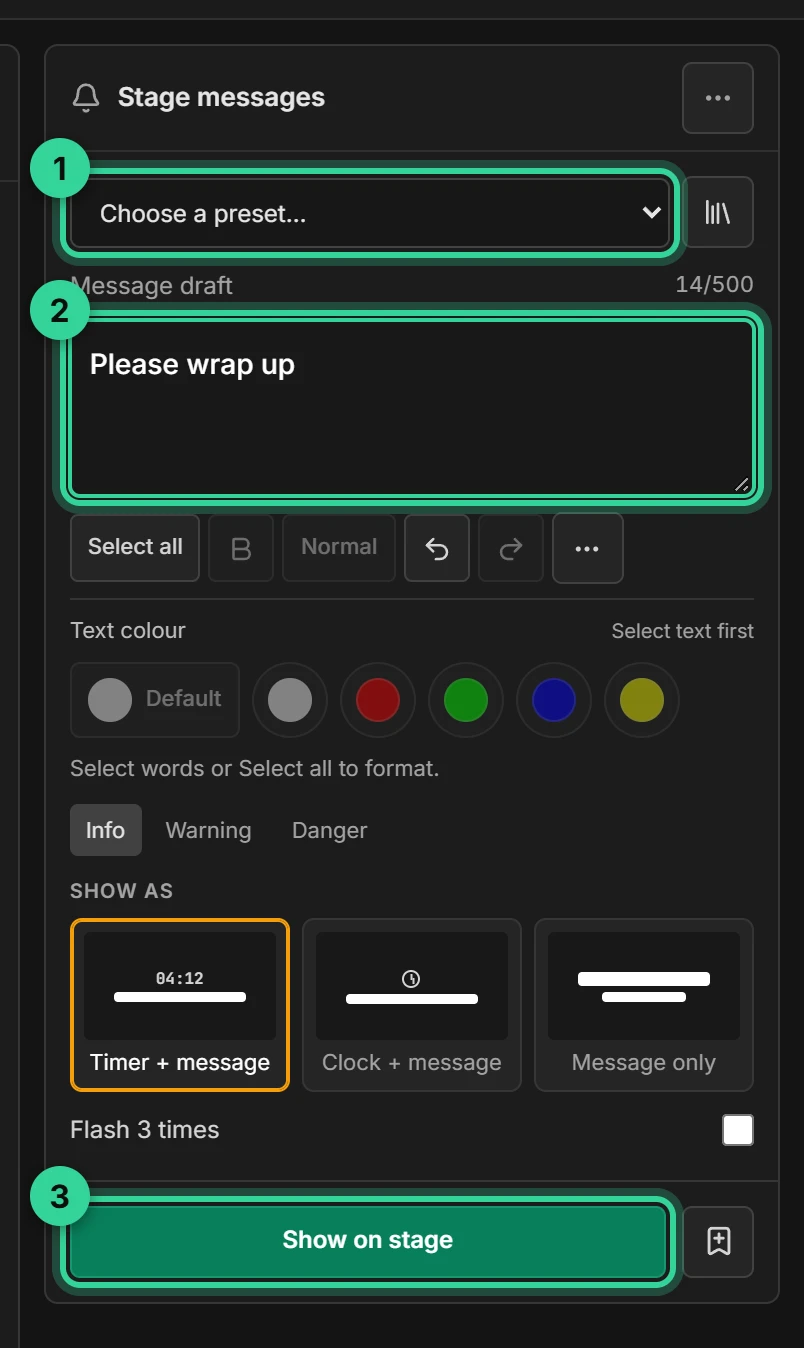
Silent cues to the stage with Shotimer
Shotimer doesn't control lighting, sound or video. What it does is time each segment and get silent messages to people on stage or backstage, which is often the cue that's hardest to give.
- Time cues: “5 MIN LEFT” or “Please wrap up” on the speaker's screen, without saying a word.
- Backstage screens: put a stage screen in the wings or green room to show the countdown and calls such as “Panel to the stage”.
- A moderator link lets someone else send messages without being able to touch the timer.
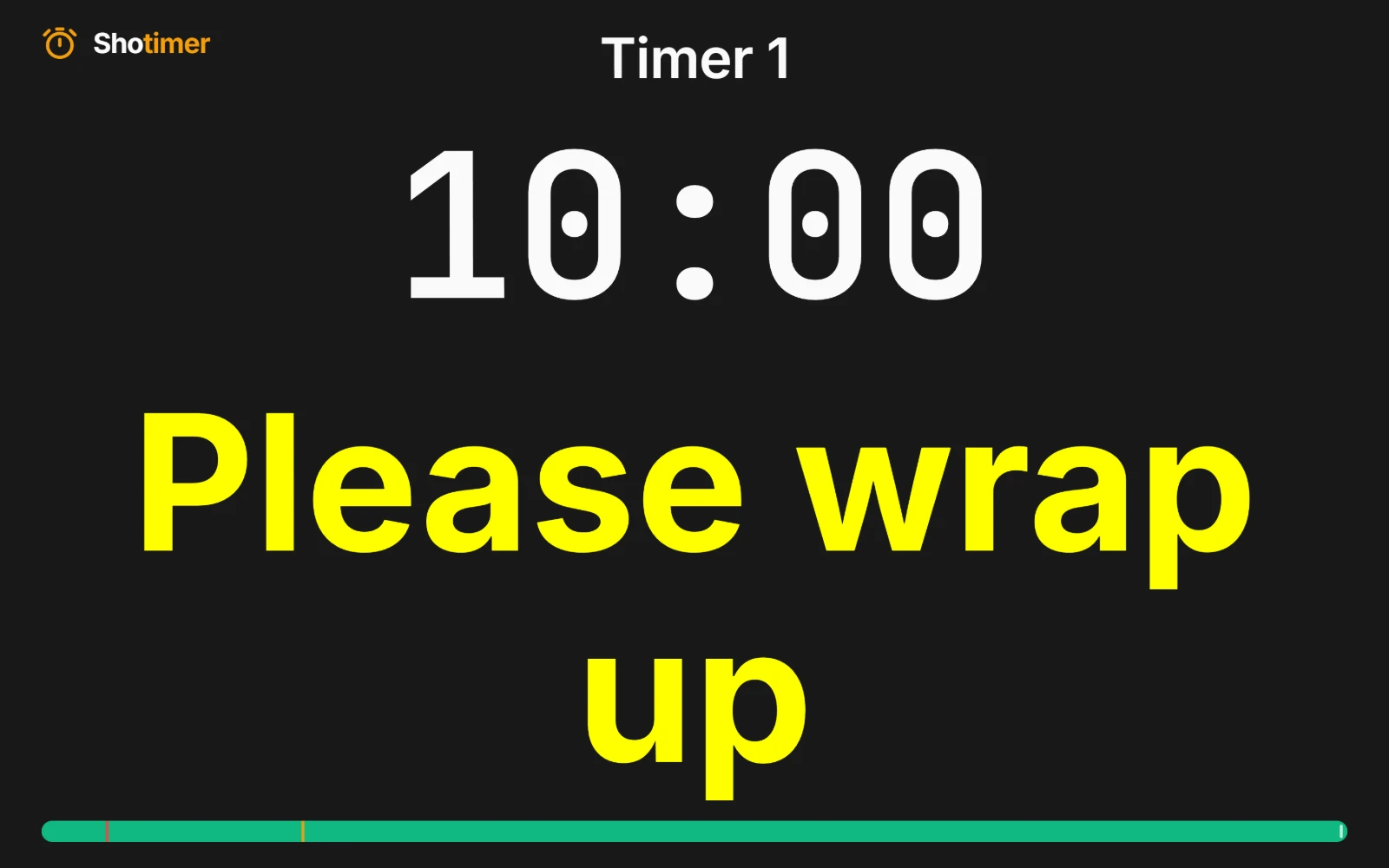
Ready in three steps.
Set up your running order
Create a free account, open a room and give each timer a title, a speaker and a duration.
Put the timer on a screen
Open the stage screen in a new tab, or scan its QR code on a TV, tablet or phone. Nothing to install.
Press Start
Every screen counts down together. Add a minute, send a message or move to the next timer from your laptop or phone.
Frequently asked questions.
Learn more in the docs
More guides
Try Shotimer at your next show.
Create a free account and put a timer on your own screens in a few minutes.
Create a free account