A conference timer that keeps every speaker on schedule
Give every speaker a clear countdown, run back-to-back sessions without fuss, and know at a glance whether the day is running late. Each room gets its own stage screens, and the crew get their own links.
Free plan: 3 rooms, 3 timers and 3 screens per room. No card needed.
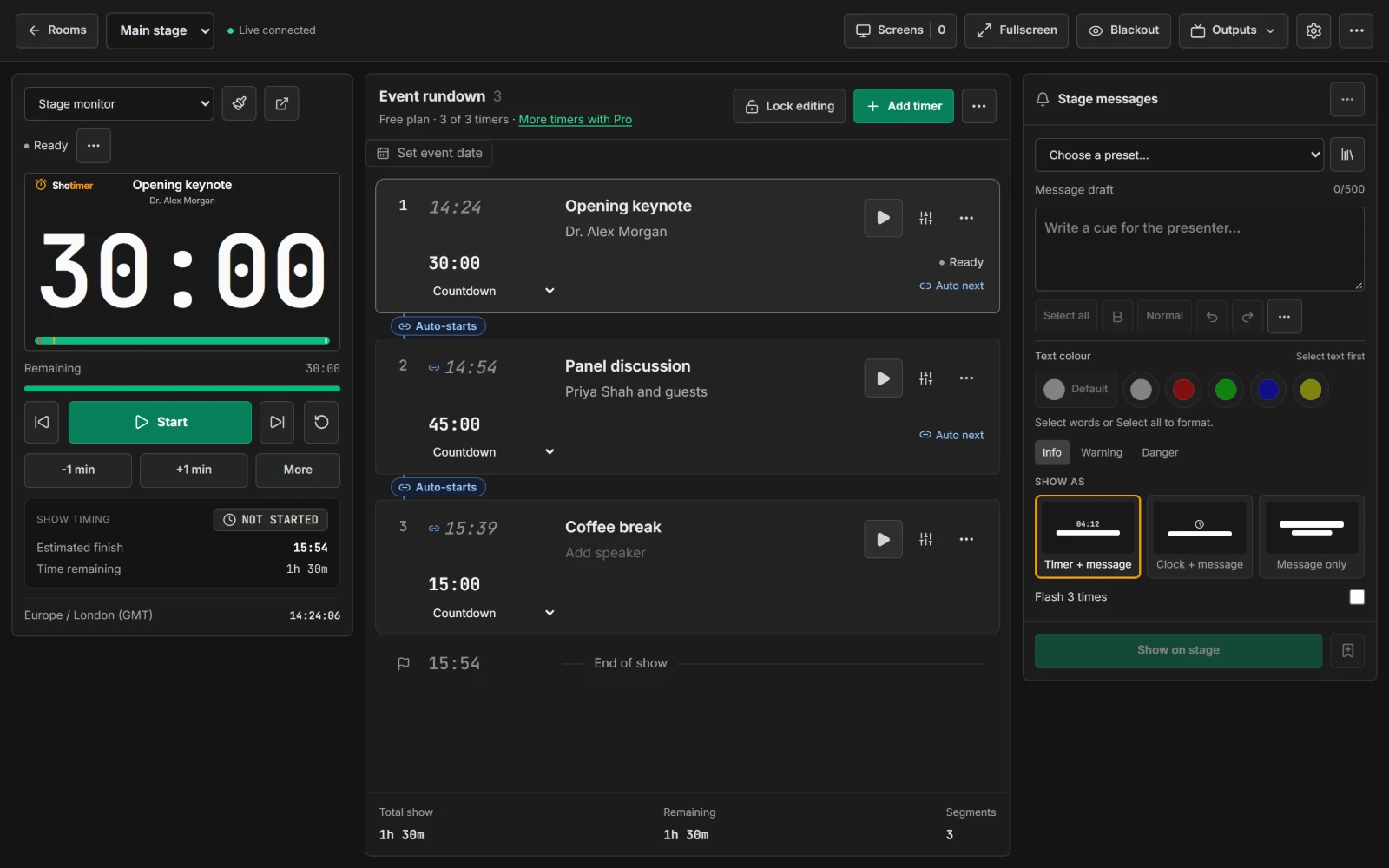
Back-to-back sessions, without the fuss
Build the day as a running order of sessions. Each one shows its speaker and duration, and when it is expected to start.
- Linked sessions: the next timer starts the moment the current one ends.
- Scheduled starts: give a session a start time, such as 09:00, and it begins on its own.
- Expected start times: every row shows when it should now begin, updated as the day runs over or under.
A confidence monitor every speaker can read
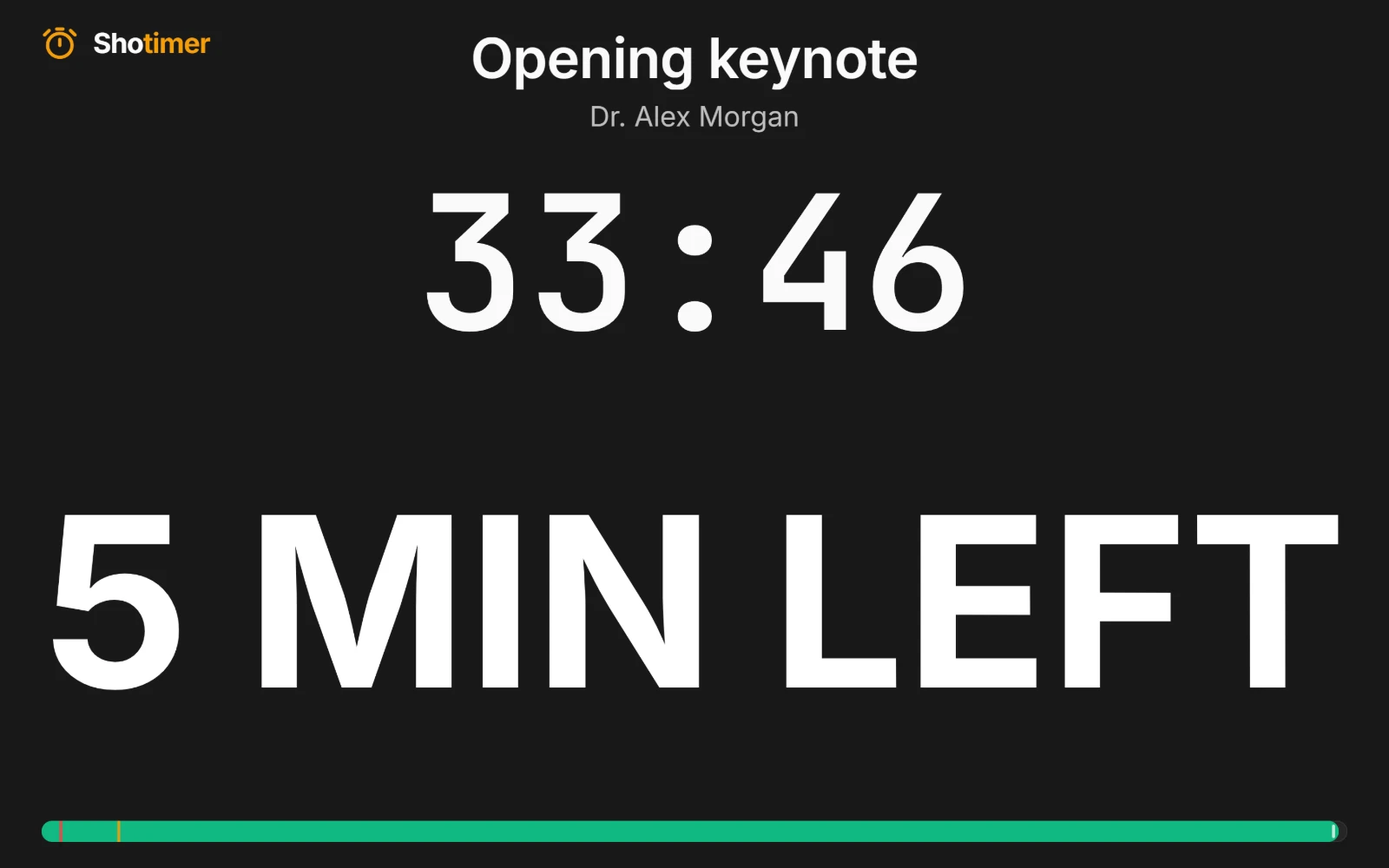
The stage screen shows the session title, the speaker and a countdown that fills the screen, on a TV, a projector or a tablet at the lectern.
- Warning colours: yellow with 2 minutes left and red with 30 seconds left, or times you choose.
- Overtime: the timer counts past zero, so speakers can see how far over they are. Or hold it at 00:00.
- Silent cues: send 5 MIN LEFT, “Time for questions” or any note of your own, straight to the stage.
Know straight away when the day is running late
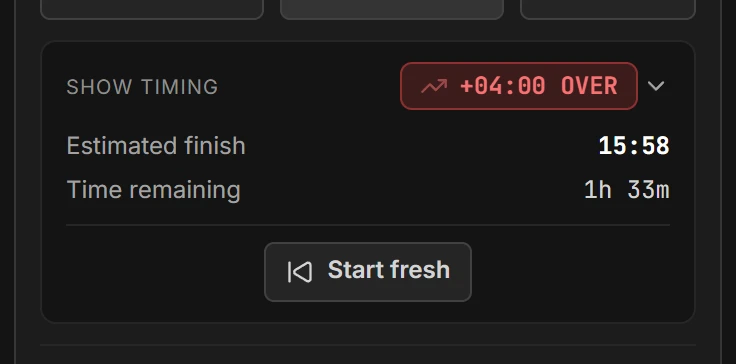
Shotimer tracks the whole programme, not just the current session. The Show timing panel shows whether you are on time, over or under, and when the day is now expected to finish. If you're running late, it can share the lost time across the sessions still to come.
- Over or under: see exactly how much time to take back from the next break.
- Projected finish: know when the last session will really end.
- Add or take off a minute: adjust a running session with one tap.
A room for every stage, a link for every role
Each room has its own running order, stage screens and links, so the main stage and breakout rooms run independently.
- Operators run the timers, and moderators such as session chairs can only send stage messages.
- Agenda screens show a read-only running order for the crew, without speaker notes.
- One controller at a time: if two people open the same room, only one can press Start. The other device can take over with one confirmation.
- Live Connections: see every connected screen across your rooms, and remove any you don't recognise.
Ready in three steps.
Set up your running order
Create a free account, open a room and give each timer a title, a speaker and a duration.
Put the timer on a screen
Open the stage screen in a new tab, or scan its QR code on a TV, tablet or phone. Nothing to install.
Press Start
Every screen counts down together. Add a minute, send a message or move to the next timer from your laptop or phone.
Frequently asked questions.
Learn more in the docs
More ways to use Shotimer
Try Shotimer at your next conference.
Create a free account and put a timer on your own screens in a few minutes.
Create a free account