Screens and access
See which screens are connected, remove one you don’t recognise, and keep your links safe.
Every link or QR code you share lets one more device show the room. You can see which devices are connected, and remove any you don’t recognise.
See what’s connected
The Screens button at the top of the Controller shows how many screens are connected. Click it for the list: each device, the view it’s showing, and whether it’s connected now or was last seen earlier.
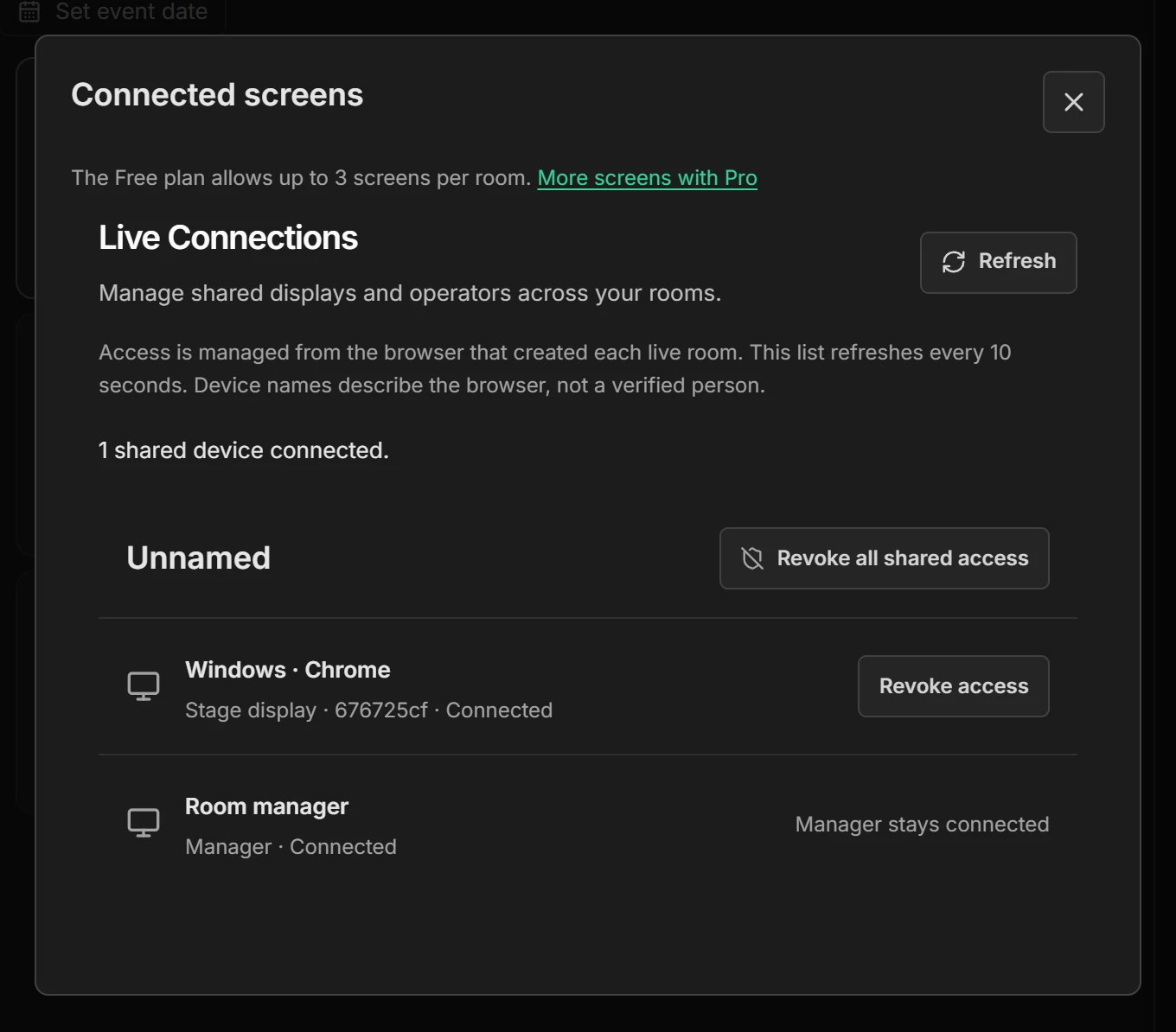
Device names describe the browser, such as “Windows · Chrome”, not a verified person or a particular device.
To see the screens in all your rooms at once, choose Live Connections at the top of the dashboard.
How many screens
The Free plan allows up to 3 connected screens per room. Your own Controller doesn’t count, a screen that reconnects keeps its place, and the same browser counts once even with several tabs open. One browser can have the same screen open in up to 4 tabs. See What counts as a screen.
If a fourth screen tries to join, it shows Waiting to connect with the reason, and it connects by itself as soon as another screen disconnects. With Shotimer Pro, which is coming soon, each room gets 5 screens, with up to 25 available.
Remove a screen
In the Screens list, press Revoke access next to a device, and confirm.
- That device disconnects straight away and can’t rejoin with its old link.
- The room’s sharing links and QR codes also change, so nobody can use an old copy of the link to get back in. Other registered screens stay connected, but send the new links to anyone who still needs to join.
- Your Controller and the running timer aren’t affected.
Disconnect every shared screen
Press Revoke all shared access to disconnect every shared screen and operator at once. All links and QR codes change. You can do the same from Outputs: open Share links & QR codes and choose Replace all sharing links.
A screen that was offline may keep showing its last timer until it tries to reconnect.
Treat links like keys
- Each link opens only the view it was made for. A Stage monitor link can’t control the show, even if someone edits the address.
- The Controller link gives full control, so only send it to people running the show.
- Anyone with a link can use it until you replace the links, so don’t post them publicly.