Stage messages
Send a silent message to the speaker’s screen, such as “Please wrap up”, and clear it when you’re done.
Stage messages appear on the speaker’s screen, so you can tell them to wrap up or switch mics without saying a word. Nothing reaches the stage until you press Show on stage.
1. Write a message
Stage messages are on the right of the Controller. On a tablet, press Stage messages at the top.
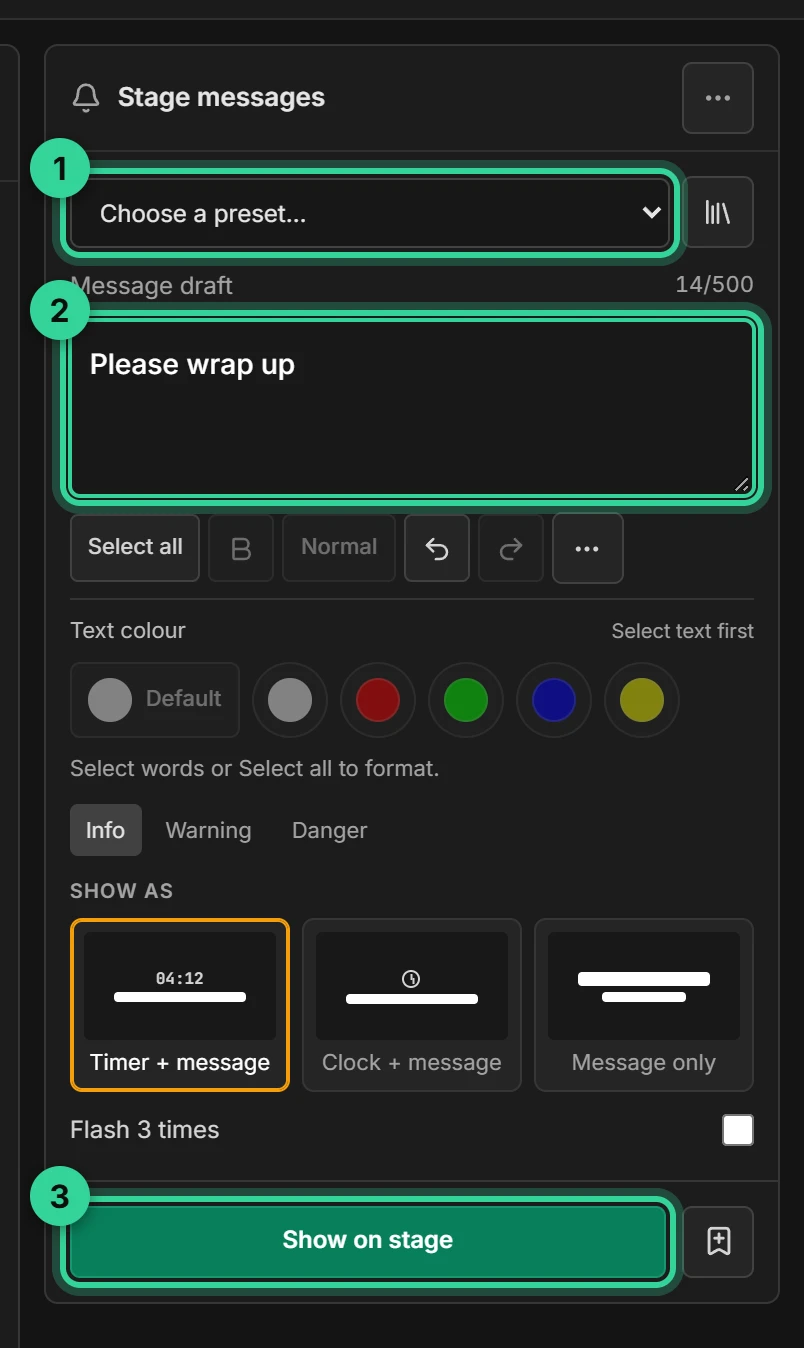
- Choose a ready-made message from the Choose a preset list, such as 5 MIN LEFT or MIC CLOSER PLEASE.
- Or type your own in Message draft, up to 500 characters.
Until you send it, the message is only a draft on your screen.
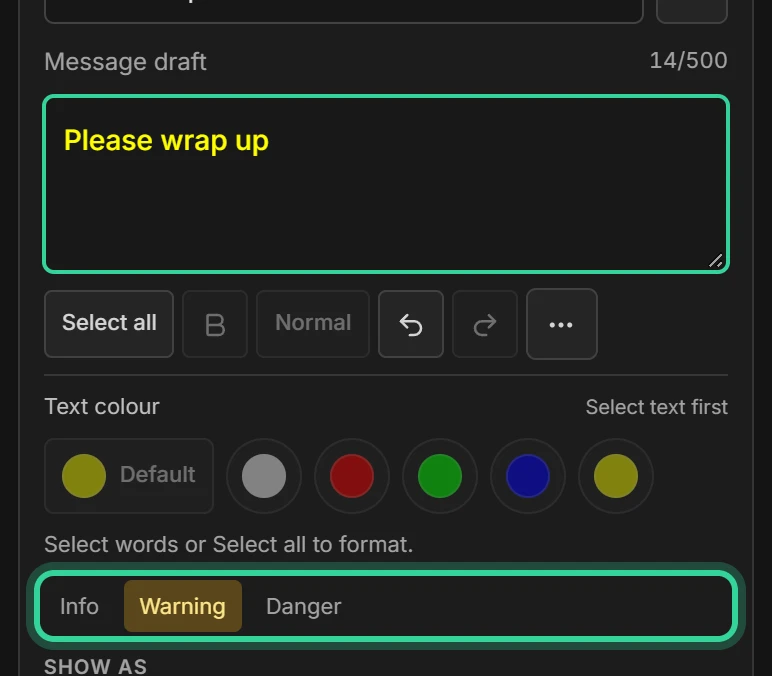
2. Choose a colour and style
- Info, Warning and Danger make the whole message white, yellow or red.
- To colour or bold just some words, select them, then choose B or a colour.
- Select all, Undo and Redo are in the same row.
3. Show it on stage
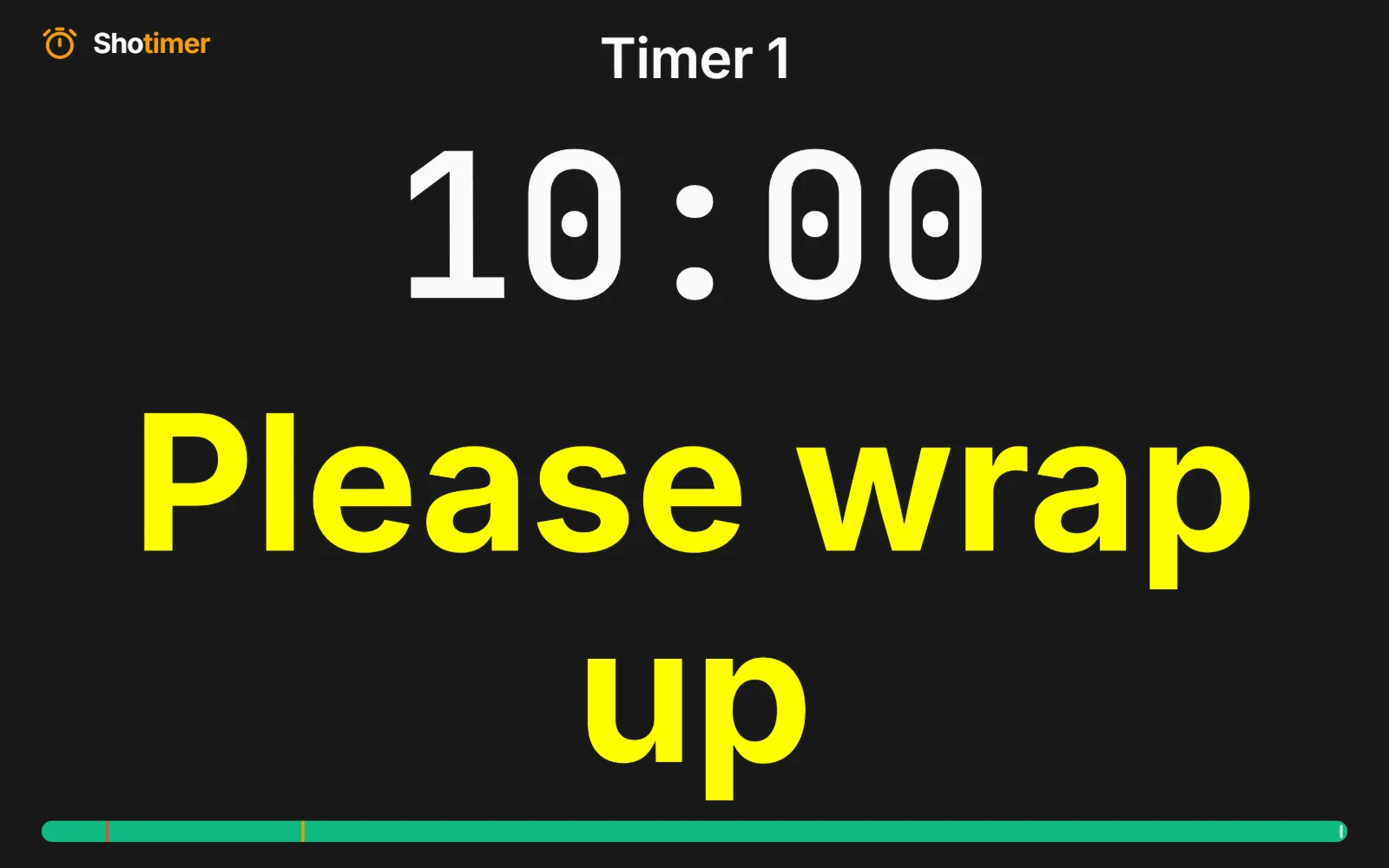
Press Show on stage. The message appears on every stage screen straight away, with the timer above it, and stays there until you clear it.
Choose how the message shows
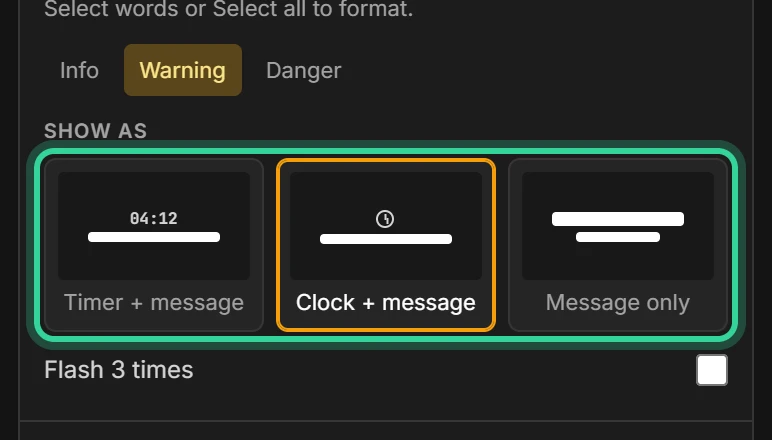
Under the message, Show as sets how the next message appears on stage:
- Timer + message shows the timer, smaller, above the message. This is the default.
- Clock + message shows the time of day above the message instead of the timer. It suits breaks and doors opening, for messages such as “Back at 2:30”. The timer keeps running and comes back when you clear the message.
- Message only hides the timer and everything else, so only the message shows.
Shotimer remembers the last one you chose for each room on this device. To change the layout of a message that’s already on stage, choose another and press Show on stage again: nothing on stage changes until you do.
The clock is written the way the room’s Room settings say, such as 14:30 or 2:30 PM, in the room’s time zone.
Flash 3 times makes the message flash three times when it appears, then stay steady.
4. Clear the message
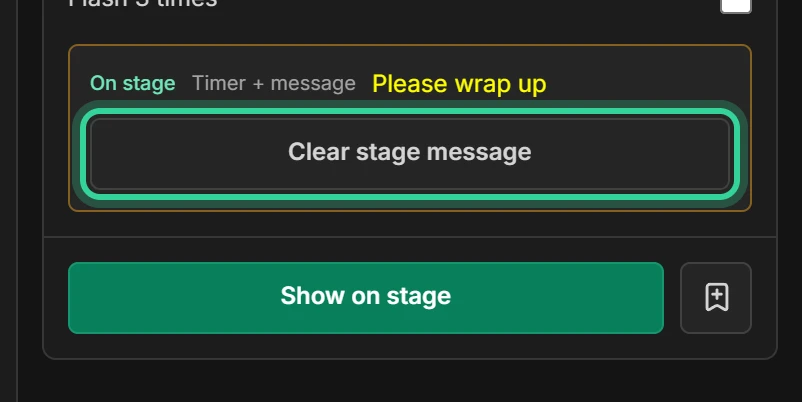
While a message is showing, it appears under On stage in the panel. Press Clear stage message to remove it from every screen.
Save your own messages
To reuse a message, write it, then press the bookmark button next to Show on stage. It appears under your own presets in the Choose a preset list. You can keep up to 20. To remove one, press the library button next to the preset list.
Let someone else send messages
A Moderator link lets someone send stage messages and see speaker notes without controlling the timer. Create one from Outputs, then Share links & QR codes. See Put the timer on a screen.