Import, export and print
Back up a room’s running order as a file, restore it or copy it into another room, import a spreadsheet, and print the running order or save it as a PDF.
You can save a room’s running order as a file. Use it as a backup, to restore an earlier version, or to copy a show into another room.
Download a backup
- On the Controller, press the settings button (the cog) at the top right.
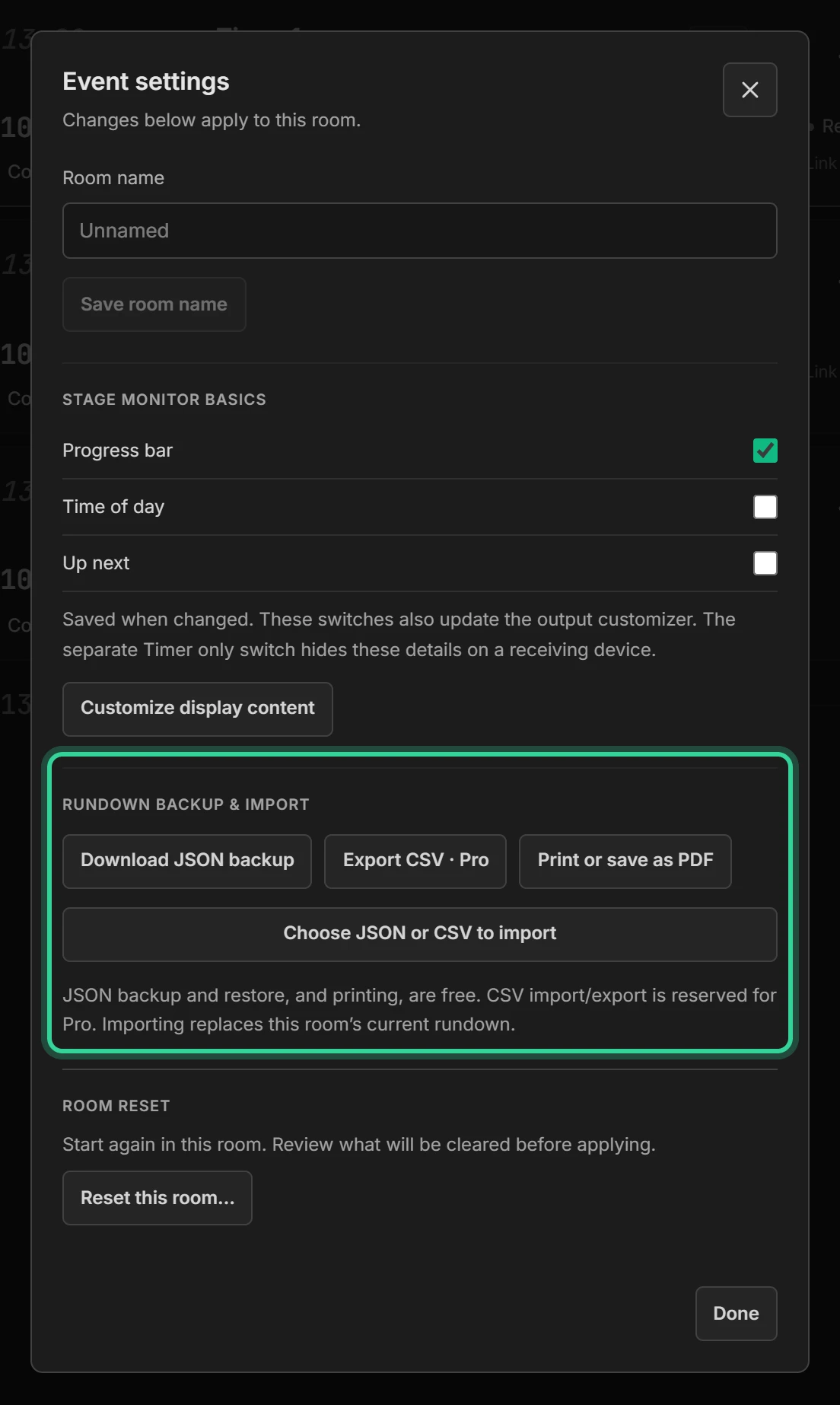
- Under Rundown backup & import, press Download JSON backup.
The file contains the room’s timers, with their titles, speakers, durations, start times, settings and notes. It doesn’t contain sharing links, so it’s safe to send to someone.
Import a running order
- Open the room you want to import into.
- In Event settings, press Choose JSON or CSV to import and pick the file.
- Check what will be imported, then press Replace rundown.
Importing replaces the room’s current running order. Download a backup first if you want to keep it. If a timer is running, reset it before importing.
To keep the current room as it is, make a new room from the file instead: on the dashboard, press New room and choose From a backup (.json). This needs a spare room, so it’s part of Shotimer Pro once you have 3. You can also download any room’s backup from its three-dot menu on the dashboard.
Spreadsheets (CSV)
Importing and exporting spreadsheets, as CSV files for Excel, Google Sheets or Numbers, is part of Shotimer Pro, which is coming soon. JSON backups are free.
When you import a spreadsheet, Shotimer looks for these columns by their names, in any order:
- Title (or Item, Session or Segment), Speaker (or Presenter), Duration (or Length), Notes and Labels (or Tags).
- Write several labels in one cell with semicolons between them, such as VT; GFX. A label that’s new to the room gets a colour, and the same name always gets the same colour.
- A length can be written as minutes (30), minutes and seconds (5:30) or hours, minutes and seconds (1:15:00). If there's no length, Shotimer works it out from the Start and End times.
- The first Start time becomes the start of the show. Later times are worked out from the lengths, so you can see if the show runs late.
- Files saved with commas, semicolons or tabs all work. Rows without a title are skipped.
The run of show template imports as it is, and a spreadsheet exported from Shotimer imports back unchanged.
Print the running order
To give the crew a copy on paper or as a PDF, open the three-dot menu in the rundown and choose Print running order, or press Print or save as PDF in Event settings. Printing is free on every plan.
- The page lists every timer with its start time, title, speaker, length and notes. Columns with nothing in them are left out.
- Start times count on from the first timer's fixed start time, so a running order printed the evening before still shows the next morning's times. Fixed times are marked. If no timer has a start time, the page has no times.
- To make a PDF, choose Save as PDF as the printer.
- If nothing opens, your browser blocked the window: allow pop-ups for shotimer.io and try again.