Dashboard and rooms
Open, add, rename, reorder and delete rooms, and see every connected screen across your rooms.
A room is one stage or event space. Each room has its own running order, stage messages, screens and links. The dashboard lists your rooms.
Open a room
Click a room, or its Open button, to go to its Controller. The preview on the left of each row shows the room’s first timer. A room shows as Unnamed, in grey, until you give it a name.
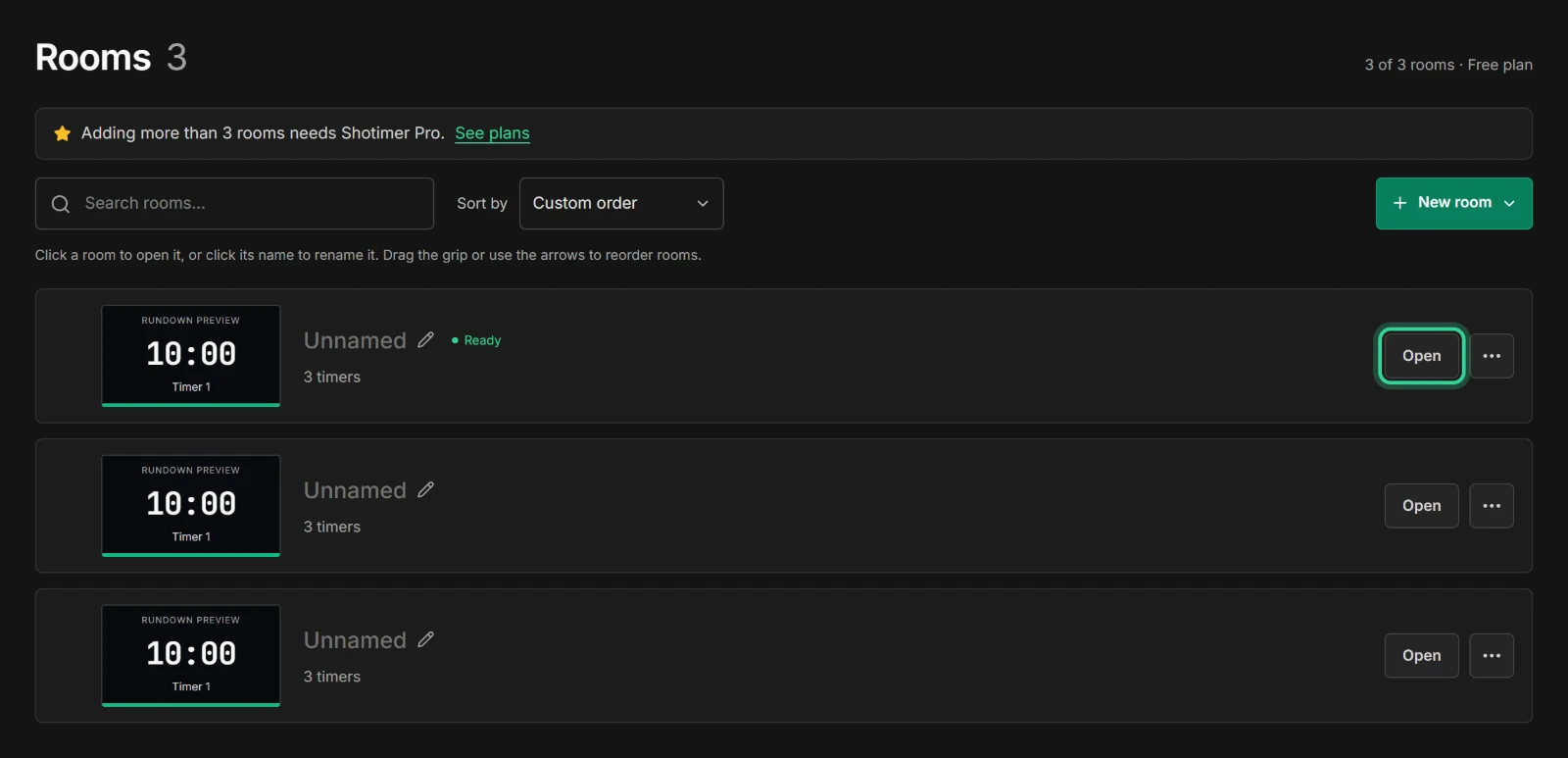
To switch rooms from the Controller, use the room list at the top left, or press Rooms to go back to the dashboard. Going back to the dashboard doesn’t stop a running timer.
Rename and reorder rooms
- Rename: click a room’s name, type the new one, and press Enter.
- Reorder: drag a room by its grip, or use the up and down arrows. This works when Sort by is set to Custom order.
- Find: type in the Search rooms box, or sort by name or by when you last opened them here.
Add, copy or delete rooms
Every account starts with 3 Unnamed rooms, each with three 10-minute timers. On the Free plan these are your 3 rooms: name them to suit your venue, as above. They can’t be deleted.
With Shotimer Pro, which is coming soon, you can have as many rooms as you need. Press New room at the top of the dashboard and choose:
- Blank room: a new room with three 10-minute timers. It opens straight away. If a timer is running in the room you have open, you stay on the dashboard, so that timer keeps going.
- From a backup (.json): a new room with the running order from a backup file.
- From a spreadsheet (.csv): a new room with the timers from a spreadsheet.

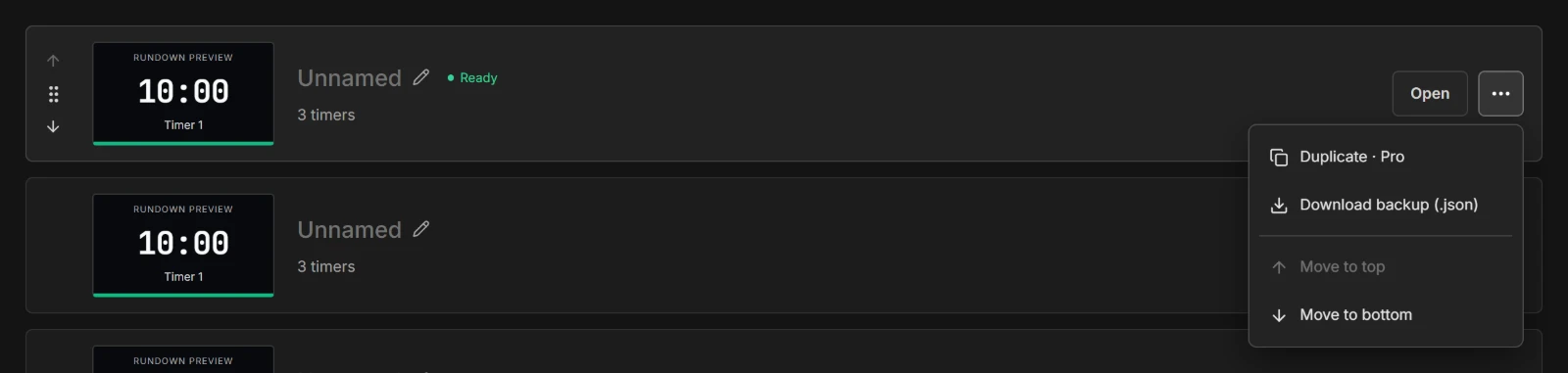
Each room’s three-dot menu has:
- Duplicate (Pro): a new room with the same timers and screen design, named “(copy)”. Its links, messages and playback aren’t copied, so screens using the original room are unaffected.
- Download backup (.json): saves the room’s running order as a file. This is free.
- Delete room: only on rooms you added. It asks first and offers a backup. Deleting removes the room’s running order for good, and screens using its links are no longer controlled. A room whose timer is running can’t be deleted until it’s reset.
See which rooms are live
A room whose show is playing says Running or Paused beside its name, with the number of screens connected to it, such as Running · 2 screens. The dashboard checks every 10 seconds. It shows this for rooms you’ve opened on this computer.
See every connected screen
Choose Live Connections at the top of the dashboard to see the screens connected to each of your rooms, without opening them. From there you can disconnect a screen you don’t recognise.
Your rooms on other devices
Your rooms are saved to your account, so they’re there when you sign in on another computer. If the same room is open on two computers, only one can control it at a time. The other is view-only until it takes control.