Show timing
See whether the show is running over or under, fix a late show, undo changes made during it, and compare planned and actual times.
Shotimer keeps track of the whole show, not just the current timer, so you can see at a glance whether you’re running late, fix it, and see afterwards what really happened.
The Show timing panel
Under the Start button, the Show timing panel is always on screen. At the top, a status says how the show is doing:
- Starts in 2h 15m before the show, counting down to the planned start, then 14m overdue if it hasn’t started on time.
- On time while the show is within the room’s tolerance of its planned finish. The tolerance is 60 seconds unless you change it in Room settings.
- Over or Under, with by how much, when the show will finish late or early.
Under it are the key times: Show starts (before the show), Planned finish, Estimated finish (when the show will end at the current pace) and Time remaining. Point at any of them for an explanation. Once the last timer has finished, Estimated finish becomes Actual finish.
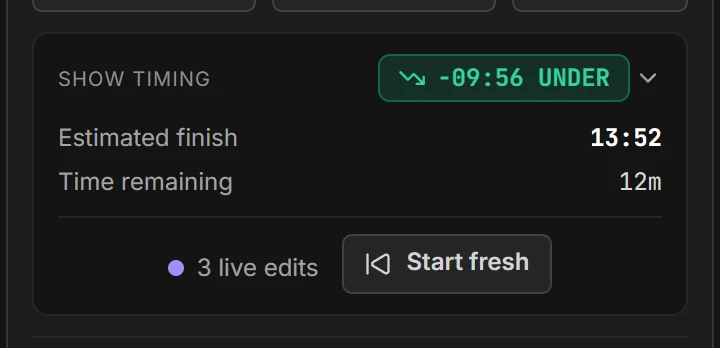
During the show, the bottom of the panel has Start fresh and, once anything has changed, the number of live edits.
Totals
The bar under the rundown shows Total show, Remaining and the number of segments. Time-of-day timers count towards the schedule using their duration.
Start times in the rundown
Every timer shows a start time:
- Bright: a time you typed. Times below it are worked out from it.
- Dim: worked out from the times and durations above.
- Dim and slanted: an estimate, when no times are set yet, of when it would start if the show began now.
Click a start time to open its box. Choose how the timer starts and, if you like, type a time, to the second if you need it, such as 09:55:05. Clear the time to go back to a worked-out one. Point at a start time to see what it is and where it comes from.
How a timer starts
The list at the top of the box sets the timer’s trigger:
- Manual: it starts when you press Play. A time you type is the plan, for the schedule and gaps, but doesn’t start it.
- Linked: it starts by itself from the beginning when the timer above reaches 0:00. This is the same as Link next on the timer above. The first timer can’t be linked.
- Scheduled: it starts by itself at its time, on the event date. It needs an event date: without one, the box says Needs an event date.
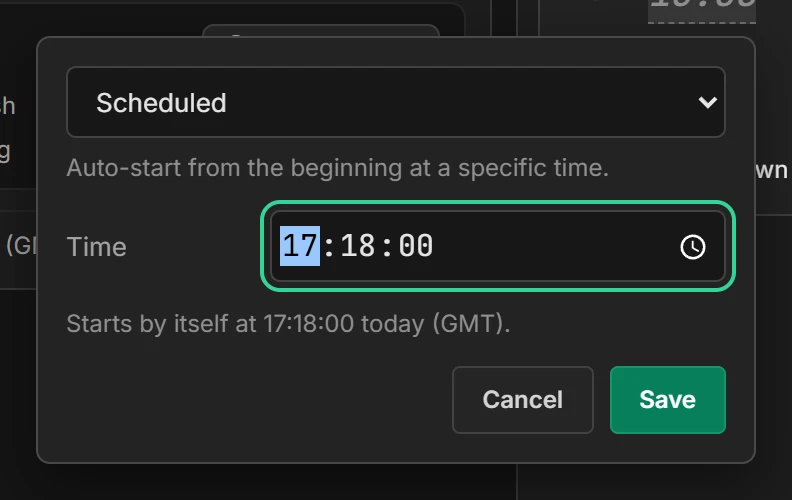
The note under the time says what will happen, such as Planned for 09:55:05 today. Triggered manually. For a Scheduled timer, a yellow bar warns when it won’t start by itself: Will not auto-start: No event date, with an Add event date button, or when the time has passed. Until then it’s triggered manually. Scheduled timers show a small clock by their start time, and linked ones a link. Press Save to keep your changes.
During the show, a small note under the time says how things are going: +2m (expected 2 minutes late), 3m early, or Now. Once a timer has run, the note shows when it really started.
Event date
The date at the top of the rundown is the event date, such as Sat, 14 Nov 2026 · Today. It’s green on the day and amber once it has passed. Click it to change it in Room settings.
Before the show, the start times are on that date, so the panel says, for example, Starts in 2d 1h. Scheduled timers only start by themselves on the event date: with no date, or once it has passed, the date line warns that they won’t.
End of show
Under the last timer, a flag line shows the End of show. On its own it’s dim, worked out from the timers. Click it, choose a time, such as a venue curfew, and press Save to fix the finish. It turns bright, and Over / Under measures against it.
- With a finish but no start time typed, the start times are worked out backwards from it: a show that ends at 21:00 with 75 minutes of timers starts at 19:45.
- If the finish leaves at least a minute spare after the last timer, a dashed box says Gap before the end of show. If the timers run past it, it says The timers run past the end of show, in red.
- The box’s Resolve menu can turn the gap into a timer, extend the last timer, or move the end of show. For timers that run past, it can shorten the last timer or move the end.
- During the show, the line says how the show is doing against it, such as +5m · expected 18:30, and at the end, Finished 18:30.
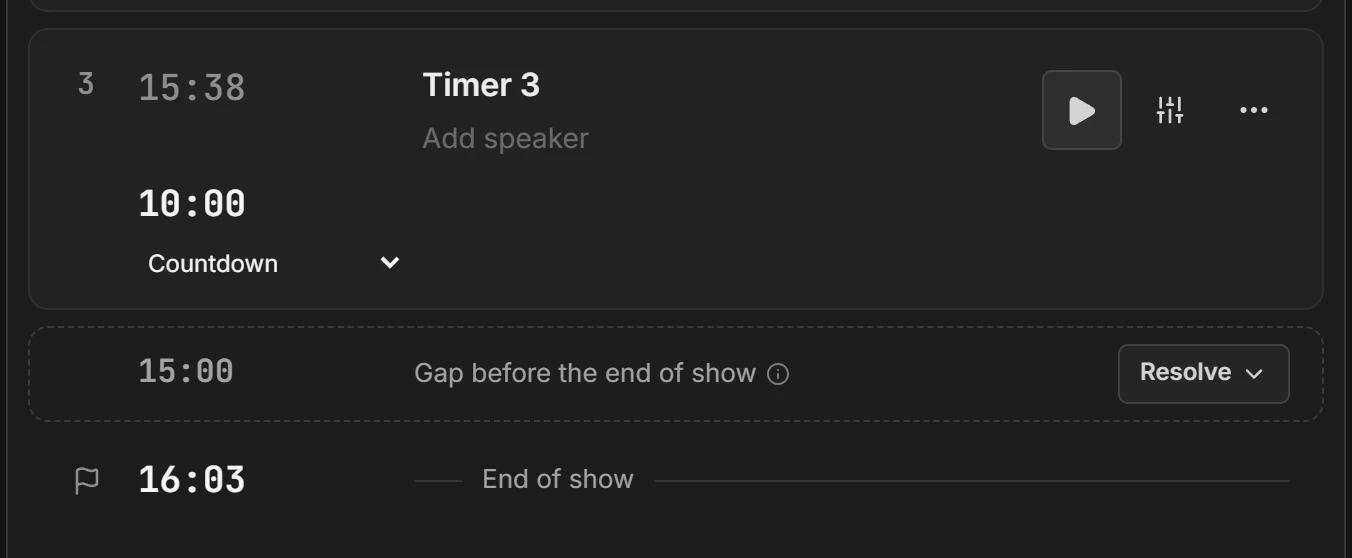
To go back to working out the finish from the timers, open it again, press Clear, then Save.
Gaps and overlaps
A start time typed on a timer in the middle of the rundown fixes that timer’s start, and the times after it follow from it. If it doesn’t line up with the timer above, a box between them shows the difference:
- Gap before “Keynote”, with its length, when there’s spare time. Keep it as a buffer for delays, or use Resolve to convert it into a timer (when the room has space for one), extend the timer above, or start the timer below earlier.
- Overlap with “Panel”, in red, when the timer below is set to start before the one above ends. Resolve can shorten the timer above or delay the timer below.
- Gap ignored because timers are linked when the timer above is linked to it: a linked timer starts when the one above reaches zero.
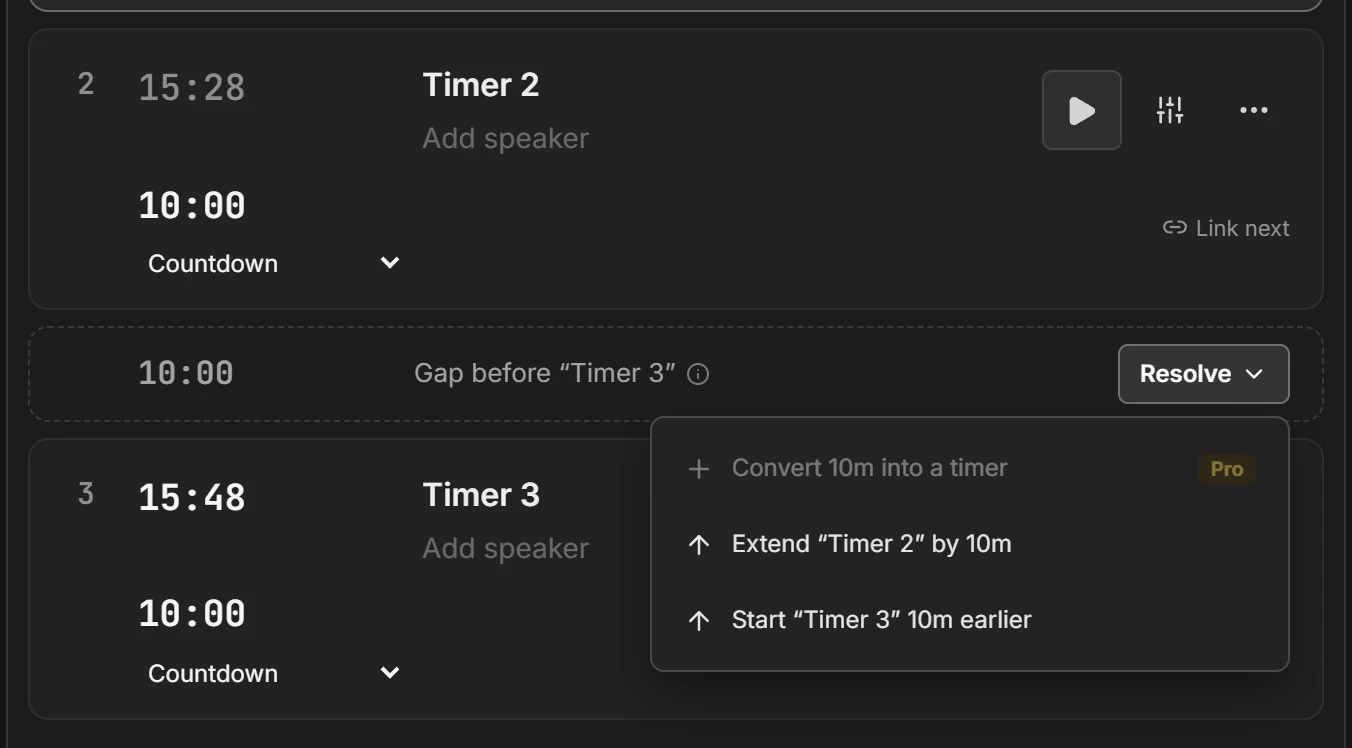
During the show, a gap soaks up delays. If you’re running 4 minutes late, a 10-minute gap shrinks to 6, the next timer still starts on time, and the show still reads On time. Once the gap is used up, the box goes. When both timers have run, it reads Pause taken, with how long the pause really was.
Get back on time
When the show is running over or under, click the Over or Under status in the Show timing panel for three ways to get back on time:
- Move playhead takes time off, or adds it to, the timer that’s playing.
- Shorten cues (or Extend cues when you’re early) shares the difference across the timers still to come. Tick the ones that can change, choose Even (the same from each) or Proportional (more from longer timers), check how much each one changes, and press Apply. No timer is shortened below a minute.
- Move end of show accepts the new finish instead.
Shortening or extending cues keeps the planned finish where it was, so the show reads On time afterwards.
Undo live edits
From the first start, every change you make is recorded: a new length or start time, a timer added and a timer deleted. Every Controller in the room sees the same list.
- A changed timer gets a line under its title with a purple dot, such as Extended by 1m · 2 (the 2 means two changes). Click it to see each change, when it happened and what it was, such as 42m → 43m. The latest one has Undo.
- A timer added during the show says Added during the show, with Delete instead of Undo.
- A timer deleted during the show stays as a faint dashed CUT row where it was. Restore puts it back, and × removes the row (the timer stays deleted). If you delete several timers in a row, only the top one shows; restoring it reveals the next.
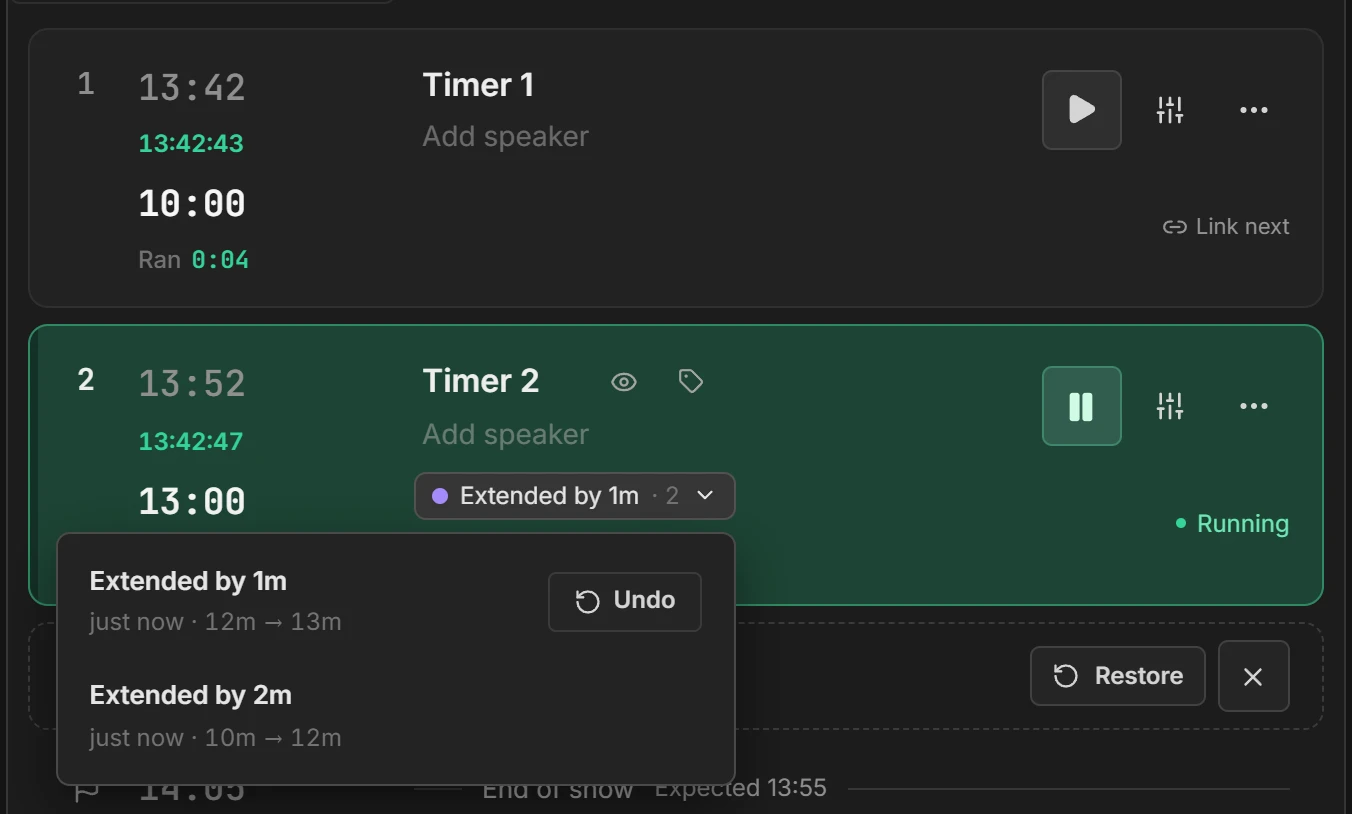
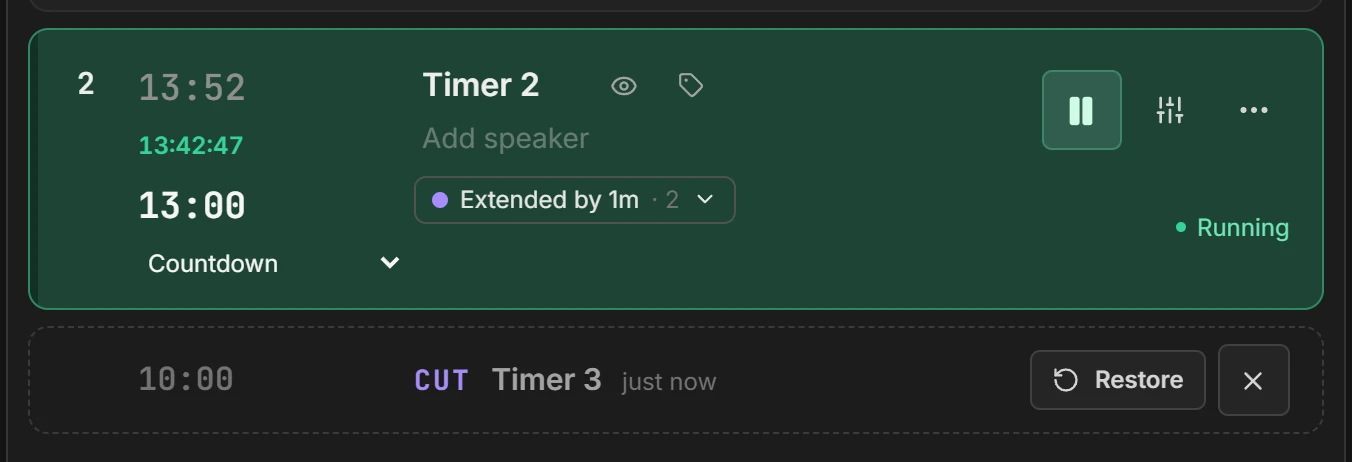
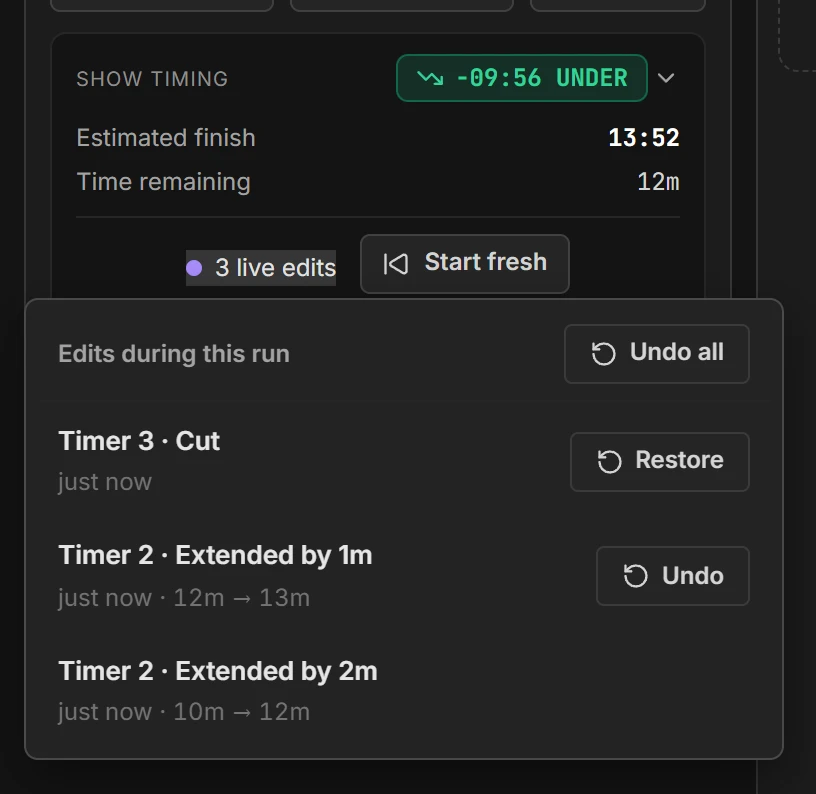
- The Show timing panel shows 3 live edits: click it for every change in the run, and Undo all to put everything back as it was before the show. Timers added during the show stay.
Planned and actual times
Shotimer records when each timer really started and how long it ran, so you can compare the show with its plan as it goes:
- Under a timer’s planned start, its real start shows in small print: red if it started later than the room’s tolerance, green otherwise. Point at it to see how late or early it was. A timer that was skipped says Skipped.
- Once a timer has finished, the Duration column shows how long it really ran, such as Ran 12:14: red if it ran over, green if it kept to time.
- Gaps show the Pause taken, and the panel and End of show line show the Actual finish.
Start fresh
After a rehearsal, press Start fresh at the bottom of the Show timing panel. It clears the run: every timer’s progress, the recorded start times and lengths, and the live edits, and selects the first timer. Start times you typed, and changes you made to timers, stay. To put the timers back as they were, use Undo all first.
Reset show timing, in the three-dot menu above the preview, does the same after asking you to confirm, but keeps the selected timer. The round arrow next to Start only resets the current timer.
Start a timer automatically at a set time
When the selected timer’s trigger is Scheduled, it starts by itself at its start time, on the event date. Timers set to Manual wait for Play, even with a start time.
- It uses the room’s time zone, set in Room settings, not the time on any one device.
- Shotimer starts it, so it starts even if every Controller and browser is closed. Every screen in the room starts with it.
- It needs an event date. With no date, or on another day, it doesn’t start by itself.
- You can still press Start yourself at any time.