Your account
Create an account with Google or email, sign in, reset your password, sign out and delete your account.
Your Shotimer account keeps your rooms, timers and settings, so you can run the show from any computer. People watching a screen, or using a link you shared, don’t need an account.
Create an account
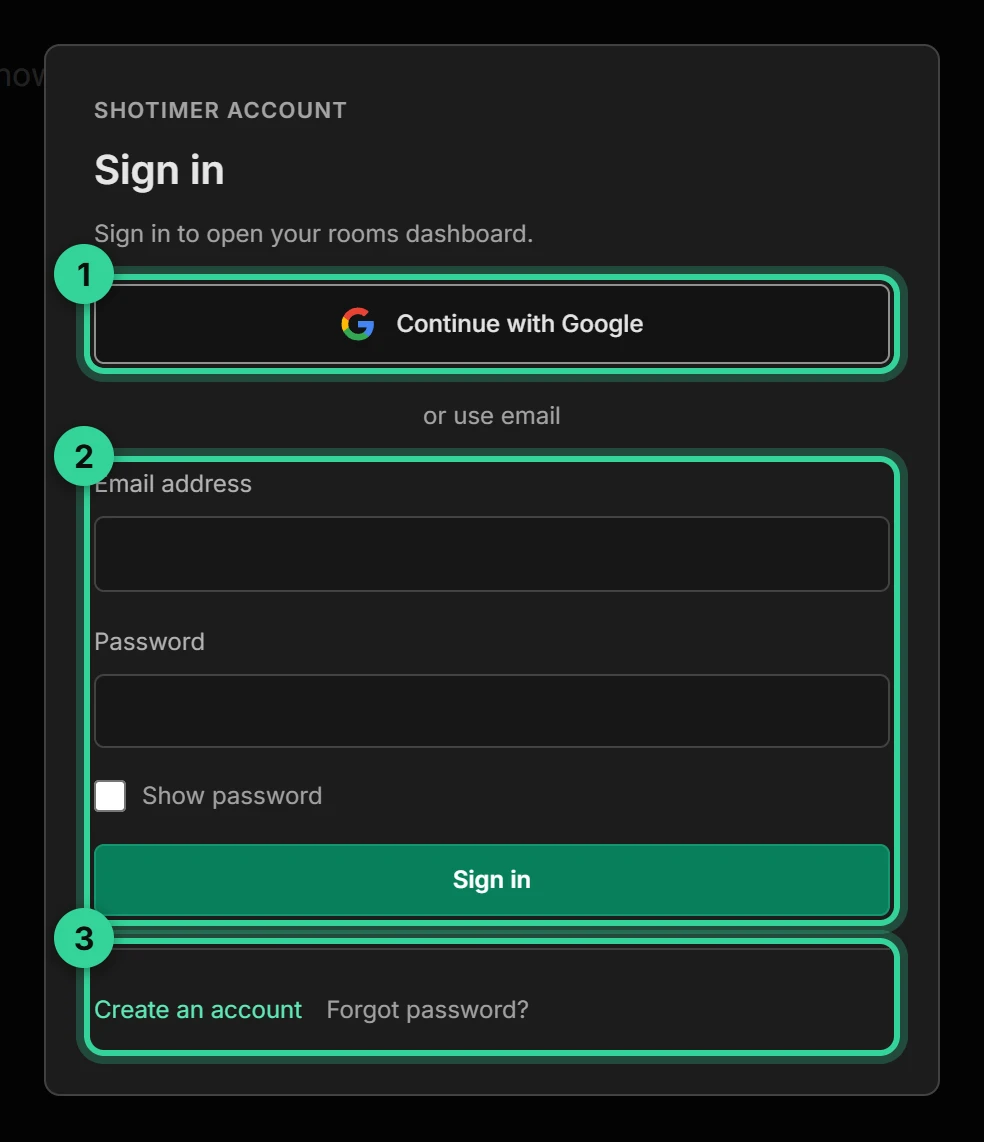
Go to shotimer.io/login, or open the app and choose Create an account. The Free plan needs no card. There are two ways to sign up:
- Continue with Google: choose your Google account and you’re in. Shotimer only asks Google for your basic profile and email address.
- Email and password: enter your name or organisation, your email address and a password of at least 12 characters. We then email you a link from no-reply@shotimer.io. Press Confirm my email in that email, and you’re signed in.
If the email doesn’t arrive within a few minutes, check your spam or junk folder. See Troubleshooting.
Sign in
Sign in the same way you signed up: with Continue with Google, or with your email and password. Your rooms, timers, screen settings, presets and room order appear on any computer you sign in on.
Once signed in, a device stays signed in, even after a restart, so it’s ready on show day. A few things are kept on each device instead of in your account, such as Timer only on a screen and Hover tips.
Forgot your password
- On the sign-in window, choose Forgot password?, enter your email address and press Send reset link.
- Open the email and press Choose a new password.
- Choose a new password of at least 12 characters and press Save new password.
Each link works once and expires after a while. If it says the link has expired or has already been used, ask for a new one.
If you signed up with Google, just use Continue with Google.
Account settings

Press your name at the top right of the dashboard, or choose Account & rooms from the three-dot menu on the Controller.
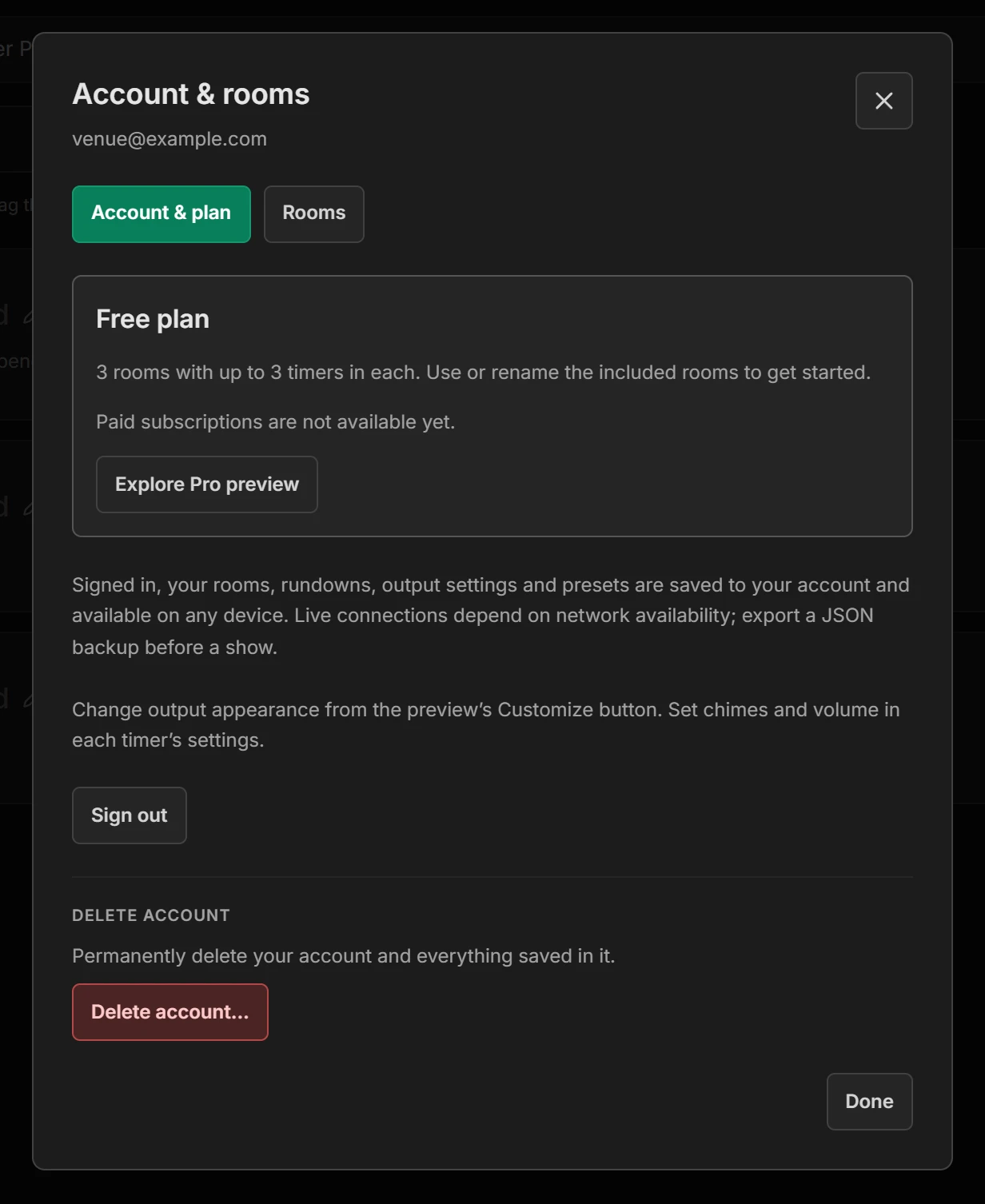
- Account & plan shows your email address and plan. See Free and Pro.
- Rooms lists your rooms, and lets you switch to, add or delete one. You can do the same, and rename rooms, on the dashboard. See Dashboard and rooms.
- Sign out signs this device out.
On a shared or borrowed computer
When you’ve finished, open Account & rooms and press Sign out. Signing out removes your rooms and timers from that browser. They stay safe in your account, ready for next time.
If someone else signs in to their own account on the same browser, your rooms are removed from it first, so they never see your show.
Delete your account
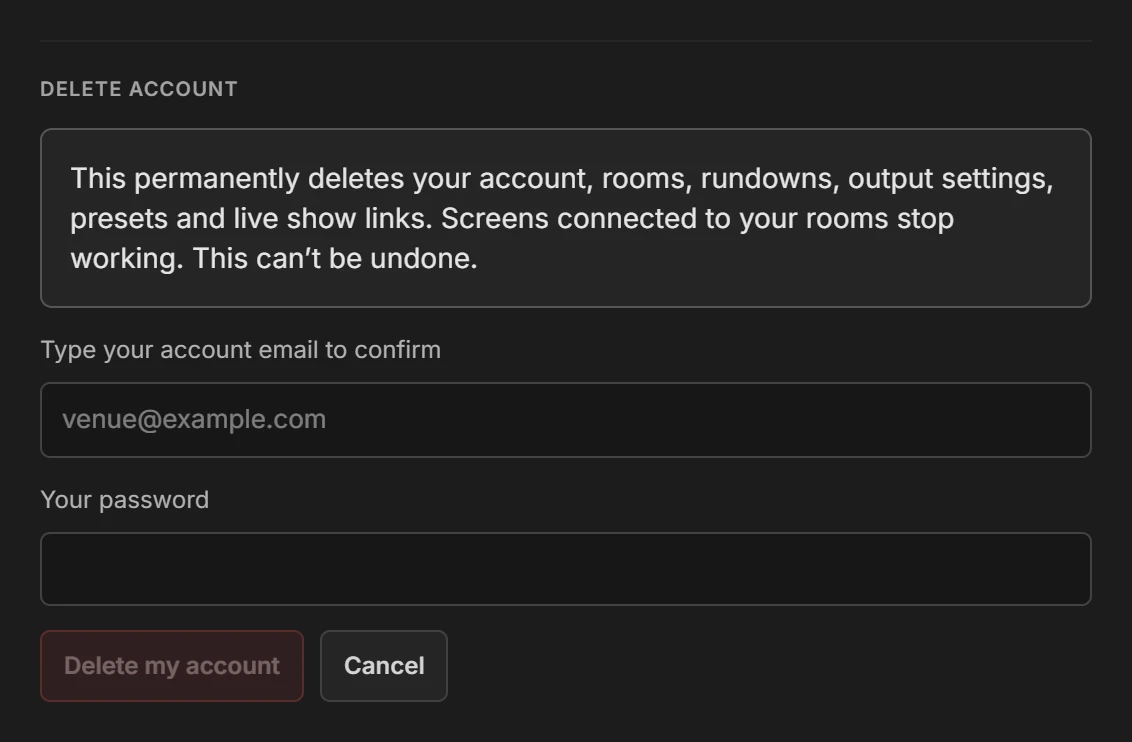
- Open Account & rooms and press Delete account at the bottom.
- Type your account’s email address to confirm.
- Enter your password. If you signed up with Google, press Confirm with Google instead, and you’ll come back to this window.
- Press Delete my account.
This permanently deletes your account, rooms, timers, screen settings, presets and live show links, and every screen connected to your rooms stops working. It can’t be undone, so download a backup of any rundown you want to keep first. See Import, export and print.
You can’t delete your account while a show is running or paused: stop it first. If you have a paid plan, cancel it and wait until it ends. For what we keep and for how long, see the privacy notice.