Put the timer on a screen
Show the timer on a TV, projector, tablet or phone, using a new tab, a link or a QR code.
Any screen with a web browser can show the timer: a TV, projector, laptop, tablet or phone. Nothing needs installing.
On a screen connected to this computer
Use this when the stage screen, such as a TV or projector, is plugged into the computer you’re running the show from.
- Click Outputs at the top right of the Controller.
- Choose Stage monitor. It opens in a new tab.
- Drag that tab onto the stage screen, then press Fullscreen.
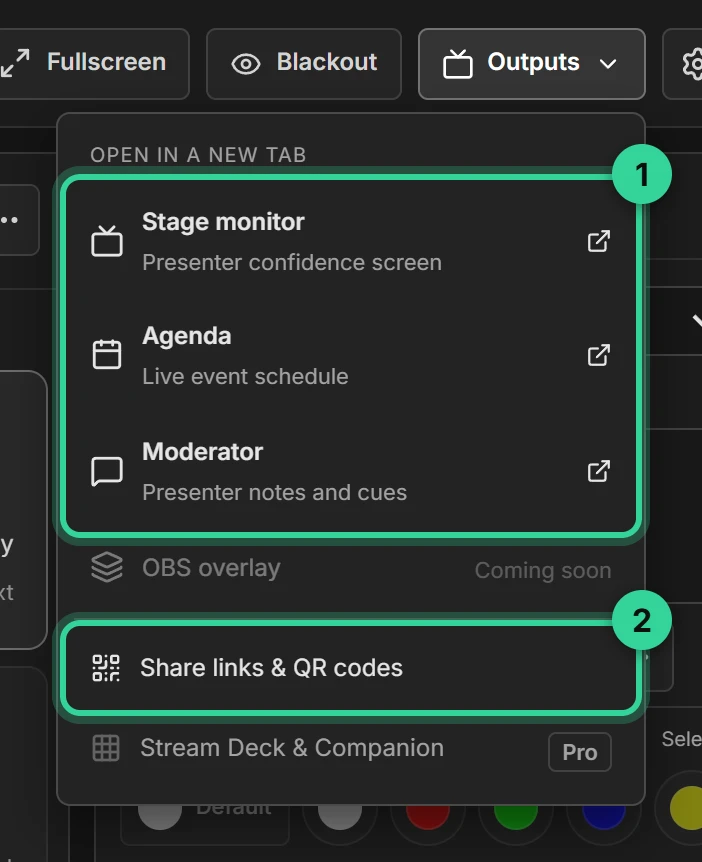
The menu also has Agenda, a read-only running order for crew, and Moderator, which shows speaker notes and can send stage messages.
On a phone, tablet or another computer
Use a QR code or a link when the screen is a separate device.
- Click Outputs, then Share links & QR codes.
- Under Choose a view, pick the screen you want, such as Stage monitor.
- On the other device, scan the QR code with its camera, or click Copy link and send the link to it.
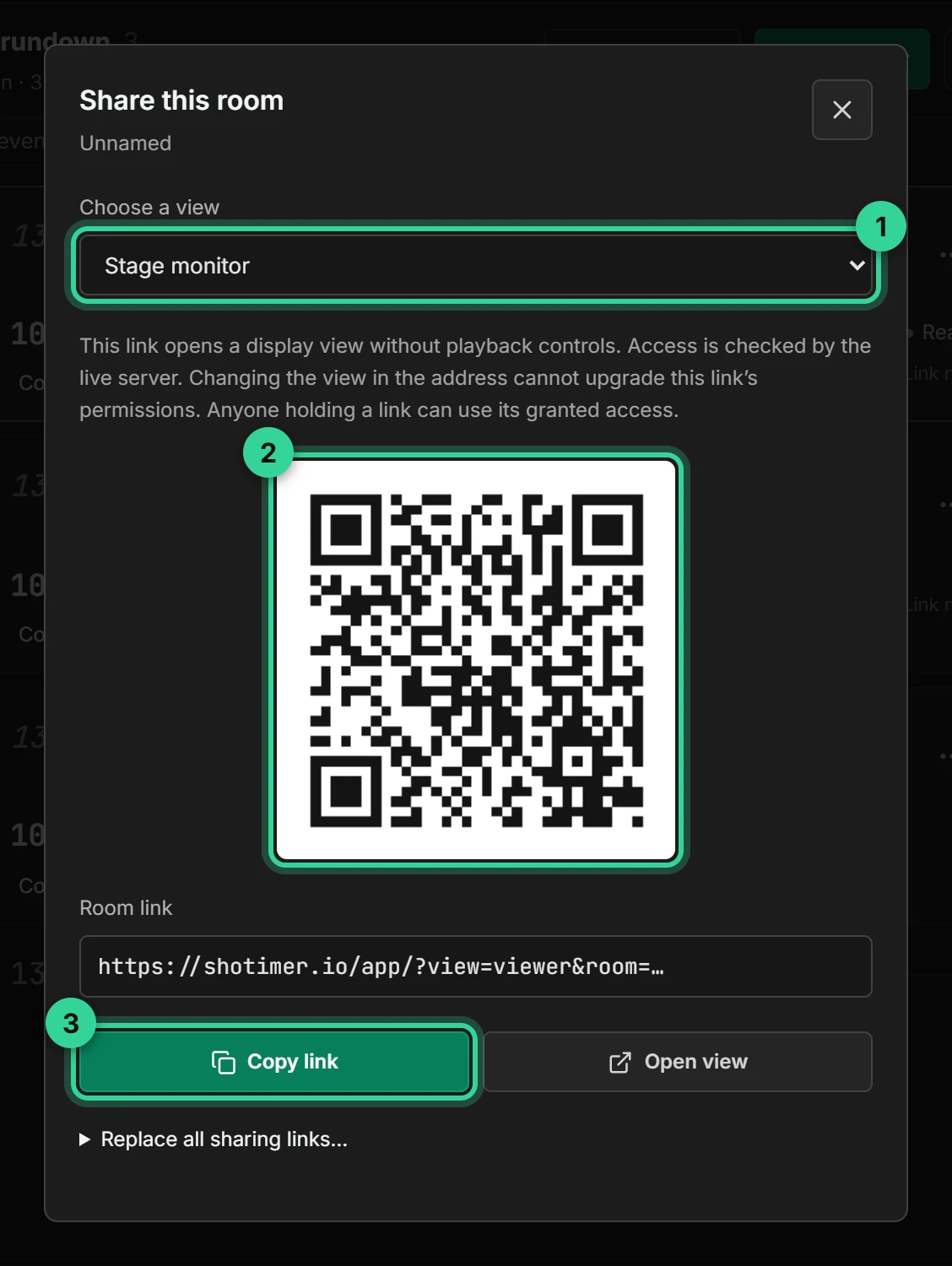
Each link only opens the view you chose. A stage monitor link can’t be used to control the show. The Controller link is different: it gives full control, so only send it to your operators.
On the stage screen
Tap or move the mouse over the stage screen to show its controls. They hide again after a few seconds.
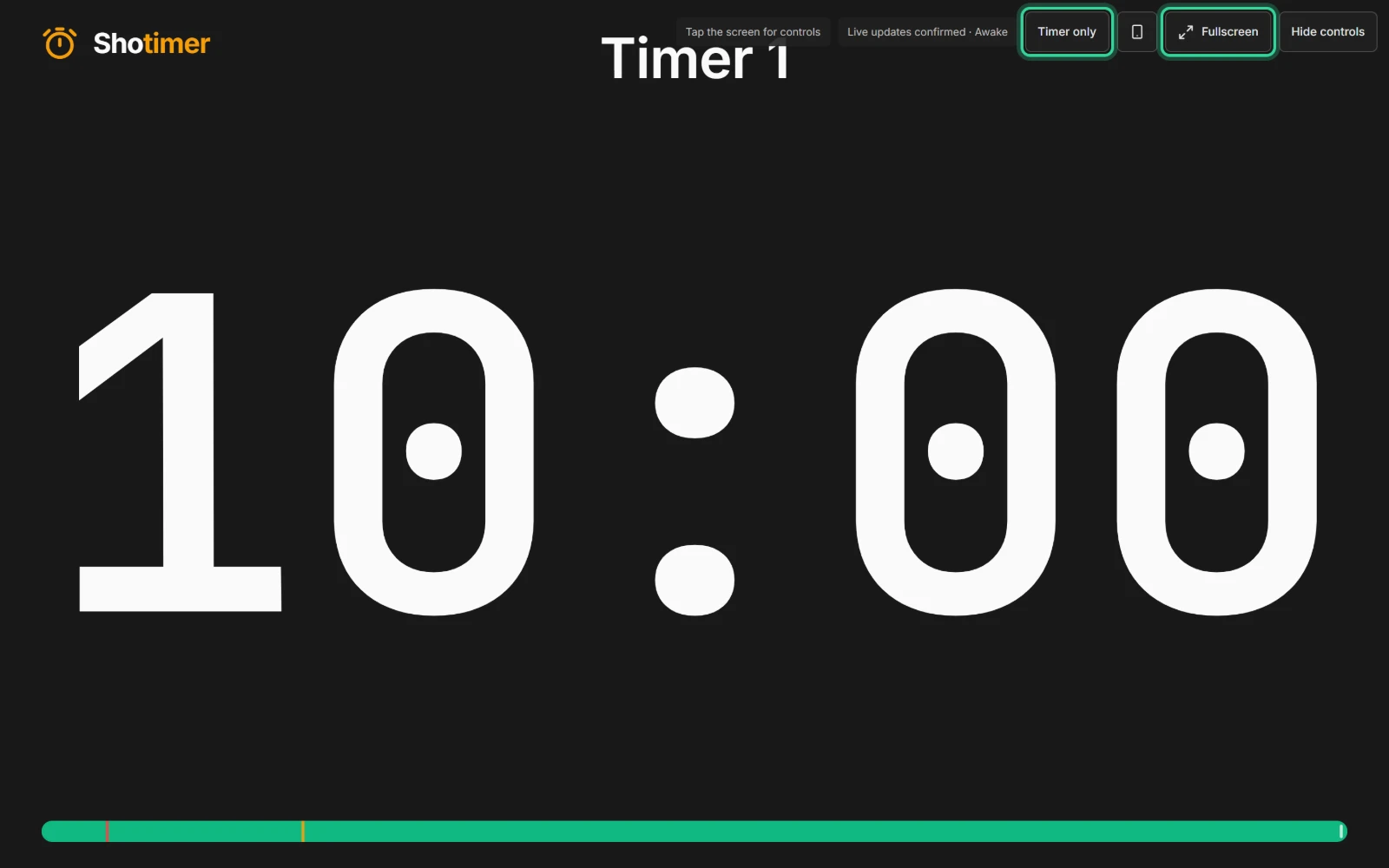
- Fullscreen hides the browser’s tabs and address bar.
- Timer only shows the countdown on its own, without the title or speaker. It only changes this screen.
- The screen stays awake while the stage view is open, where the browser allows it. “Awake” appears in the controls when it does.
Blank every screen at once
Press Blackout at the top of the Controller, or the B key, to turn every stage screen black. Press it again to bring the timer back.

Stop a link working
If a link has been shared too widely, open Share links & QR codes, choose Replace all sharing links, and confirm. Every shared screen disconnects, and the old links and QR codes stop working. Your own Controller stays connected. Then share the new links with the screens you want.
To see which screens are connected, click Screens at the top of the Controller.