Resets
Every reset in Shotimer, from one timer to a whole room, and what each one keeps and clears.
Shotimer has several resets, from putting one timer back to its full time to emptying a whole room. Each one shows exactly what it will clear before it does anything, and the ones that delete timers offer a backup first.
Which reset do I need?
| I want to | Use | Where |
|---|---|---|
| Put the current timer back to its full time | Reset current timer | The circular arrow next to Start, or press R |
| Run the show again from “Not started”, keeping the current timer | Reset show timing | Three-dot menu above the preview |
| Go back to the first timer, ready to run the show again | Restart rundown | Three-dot menu in the rundown |
| Delete every timer in the room | Clear rundown | Three-dot menu in the rundown |
| Remove the message from the stage and clear drafts | Clear stage messages | Three-dot menu in Stage messages |
| Put the stage screen back to its standard look | Reset stage appearance | Three-dot menu above the preview |
| Start the room again from empty | Reset this room | Event settings (the settings button) |
To take the current message off the stage, you don’t need a reset: press Clear stage message. See Stage messages.
Reset current timer
Stops the current timer and puts it back to its full time. Your timers, messages and screens don’t change, and the show timing keeps counting from when the show started. There’s no confirmation, so it’s quick to use mid-show. Like the other resets, it pauses scheduled starts (see below).
Reset show timing
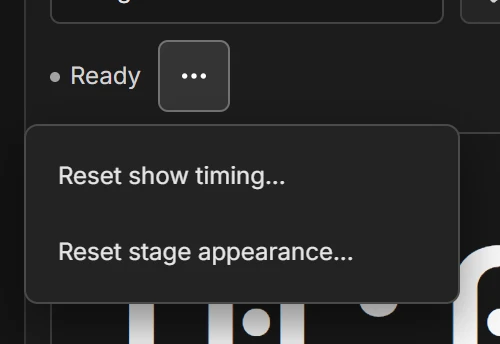
Stops the current timer, puts it back to its full time, and sets the show back to Not started, with no time over or under. It also clears the run’s recorded start times and its live edits. All your timers, start times, messages and screen settings stay. Use it after a rehearsal, so the real show’s timing starts clean.
Start fresh, at the bottom of the Show timing panel during a show, does the same in one click and selects the first timer.
Restart rundown
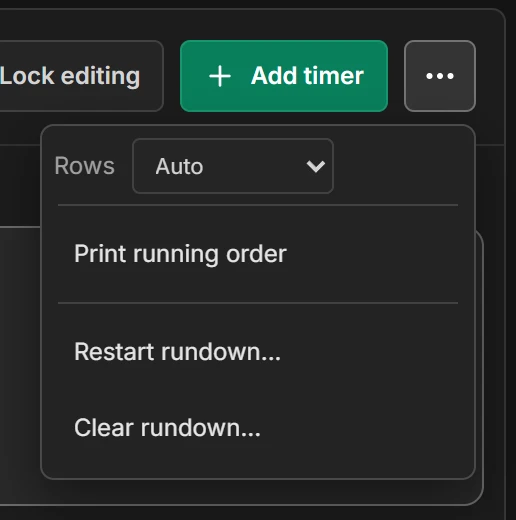
Stops playback, selects the first timer and sets the show back to Not started. Every timer, note and start time stays.
Clear rundown
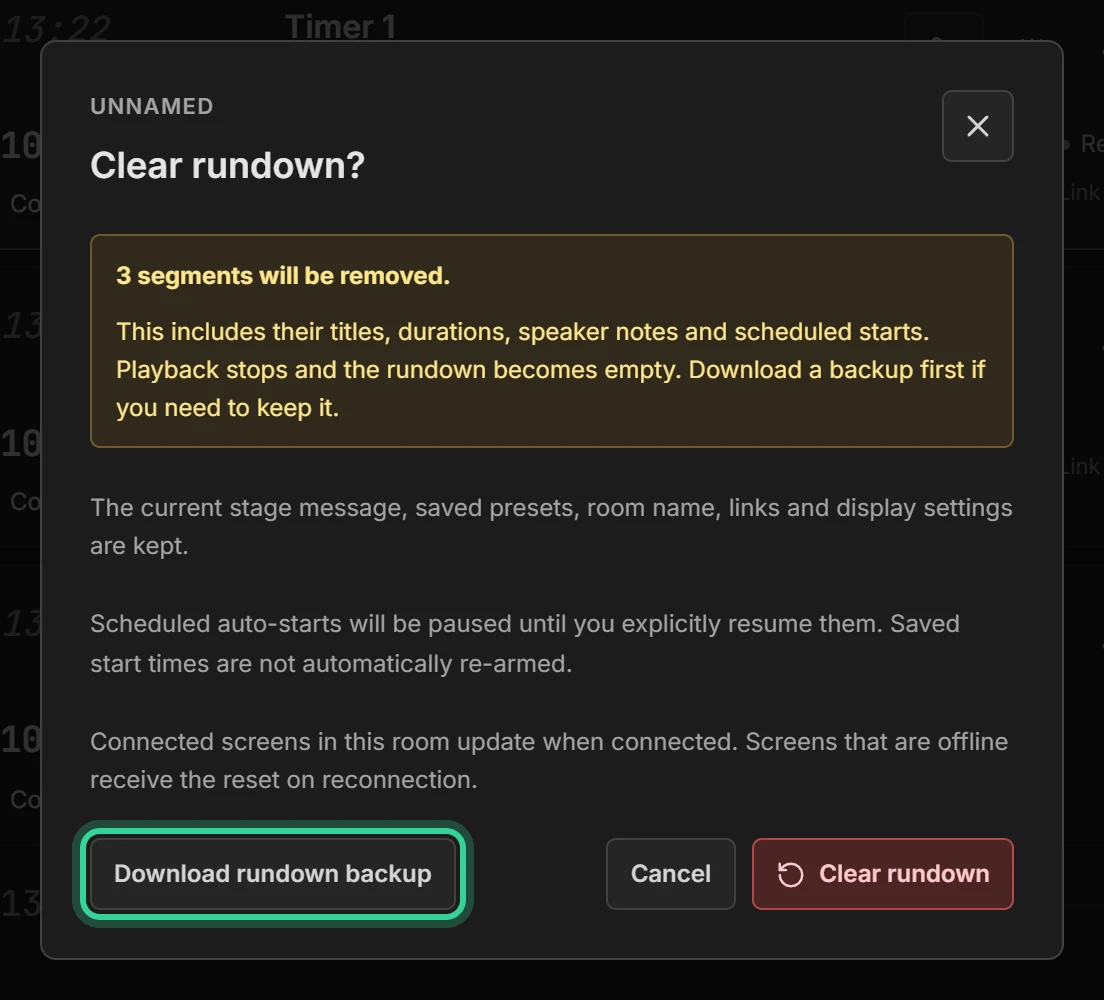
Deletes every timer in the room, with its title, length, notes and start time, and stops playback. The room’s name, links, stage message and screen settings stay.
Press Download rundown backup first if you might want the timers back. You can load the file again from Event settings. See Import, export and print.
Clear stage messages
Takes the message off every stage screen and clears the message drafts on the Controllers and Moderator views open in this room. Your saved message presets, the timers and playback stay.
Reset stage appearance
Puts the stage monitor back to the standard layout straight away, on every screen. The Agenda and Moderator views, the timers and messages stay. An uploaded logo stays unless you tick Also remove the uploaded logo. You’ll find the same reset in Customize output.
Reset this room
In Event settings, under Room reset. It deletes every timer, clears the stage message and drafts, resets the show timing and turns blackout off. The room’s name, its sharing links, your account and plan, your saved presets and your other rooms all stay. Tick Also reset all output appearance and remove the uploaded logo to start the screens’ look again too.
After a reset
- Every reset that stops playback, including Reset current timer, also pauses scheduled starts, so a timer doesn’t start by itself unexpectedly. The start times are kept. Press Resume scheduled starts under the Start button when you’re ready. See Show timing.
- Connected screens update straight away. A screen that’s offline catches up when it reconnects.
- If someone changes the room while the confirmation is open, the reset stops and asks you to look again, so you never clear something you haven’t seen.