If the internet drops
What keeps working when a connection drops, what waits until it’s back, and how to make your show more robust.
Shotimer runs over the internet, so venue Wi-Fi matters. This page explains what keeps working when a connection drops, what stops until it’s back, and how to make your show more robust before the day.
What keeps working
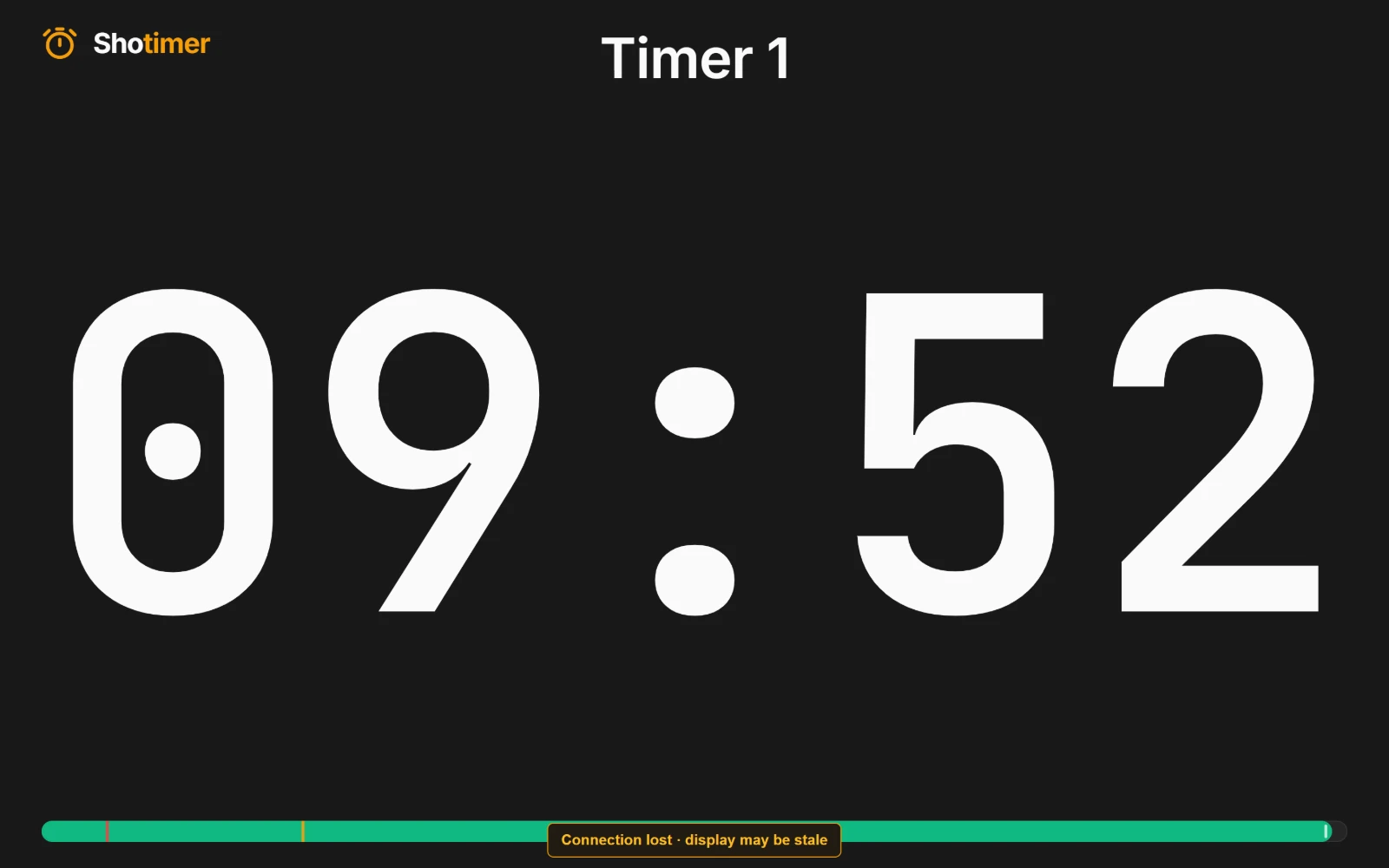
- Stage screens keep counting. Each screen knows when the timer started, so a running timer carries on, to the second, even with no connection. After a few seconds, a small yellow note appears at the bottom: Connection lost · display may be stale. It doesn’t appear during blackout.
- The Controller keeps counting too, and still shows the time left.
- Brief hiccups usually go unnoticed. If the live link blips for a moment but the device is still online, the Controller’s buttons keep working for a few seconds through a backup route while it reconnects.
What stops until it’s back
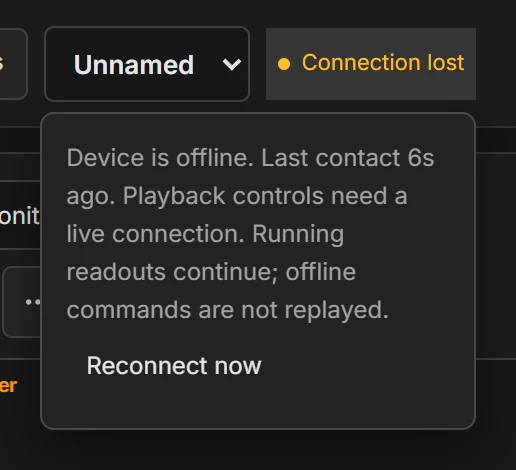
- The Controller’s playback buttons are paused. Start, Pause, Next and the rest are greyed out until the connection is back. This is deliberate: a button pressed while offline is never stored up and sent later, so a screen can’t suddenly jump when the connection returns.
- New messages and changes can’t be sent to screens that are offline. A screen that’s offline doesn’t get them until it reconnects.
- Linked timers are started by the Controller, so they need the Controller to be online at that moment. Scheduled starts are made by Shotimer itself, so they happen even if the Controller is offline or closed; screens that are offline catch up when they reconnect.
If only one device has lost its connection, everything else carries on as normal. For example, if one stage screen drops, the Controller and every other screen keep working.
See the connection
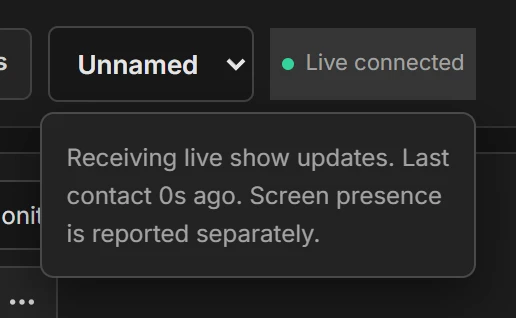
Next to the room name at the top of the Controller:
- Live connected (green): everything is working.
- Recovering…: the connection dropped and Shotimer is reconnecting by itself.
- Connection lost: still trying. Press it, then Reconnect now to try straight away.
Press Screens at the top to see which screens are connected right now. See Screens and access.
When the connection comes back
You don’t need to do anything. Each device reconnects by itself, trying again every few seconds, and screens catch up with the latest timer, message and blackout straight away. If a device hasn’t recovered after a minute or so, refresh the page.
Don’t refresh a screen while it’s offline. Shotimer needs the internet to load, so a page refreshed with no connection stays blank until the connection returns. A screen left alone keeps showing the timer.
Make your show more robust
- Test the venue’s Wi-Fi with your real devices before the day, at the times the venue will be busy.
- Hotel and conference Wi-Fi often needs a sign-in page, and some sign-ins run out after a few hours. Sign in on every device before the show, and check again before a long day.
- Plug the Controller in with a network cable if you can. A wired connection is far more reliable than Wi-Fi.
- Have a backup connection ready, such as a phone’s hotspot. If the Wi-Fi fails, switch the Controller to it, and the show carries on.
- Keep a second device with the Controller open, such as a tablet on a different connection. If the main Controller loses its connection for more than a few seconds, the other device takes control by itself. See Using two devices.
- Download a backup of the rundown before the show, from Event settings. See Import, export and print.
- Keep screens awake and plugged in, so they don’t sleep and drop their connection. See Keep it on for the whole show.
For other connection messages, see Troubleshooting.