Your first show in 5 minutes
Open a room, set a timer, put it on a stage screen and press Start.
1. Open a room
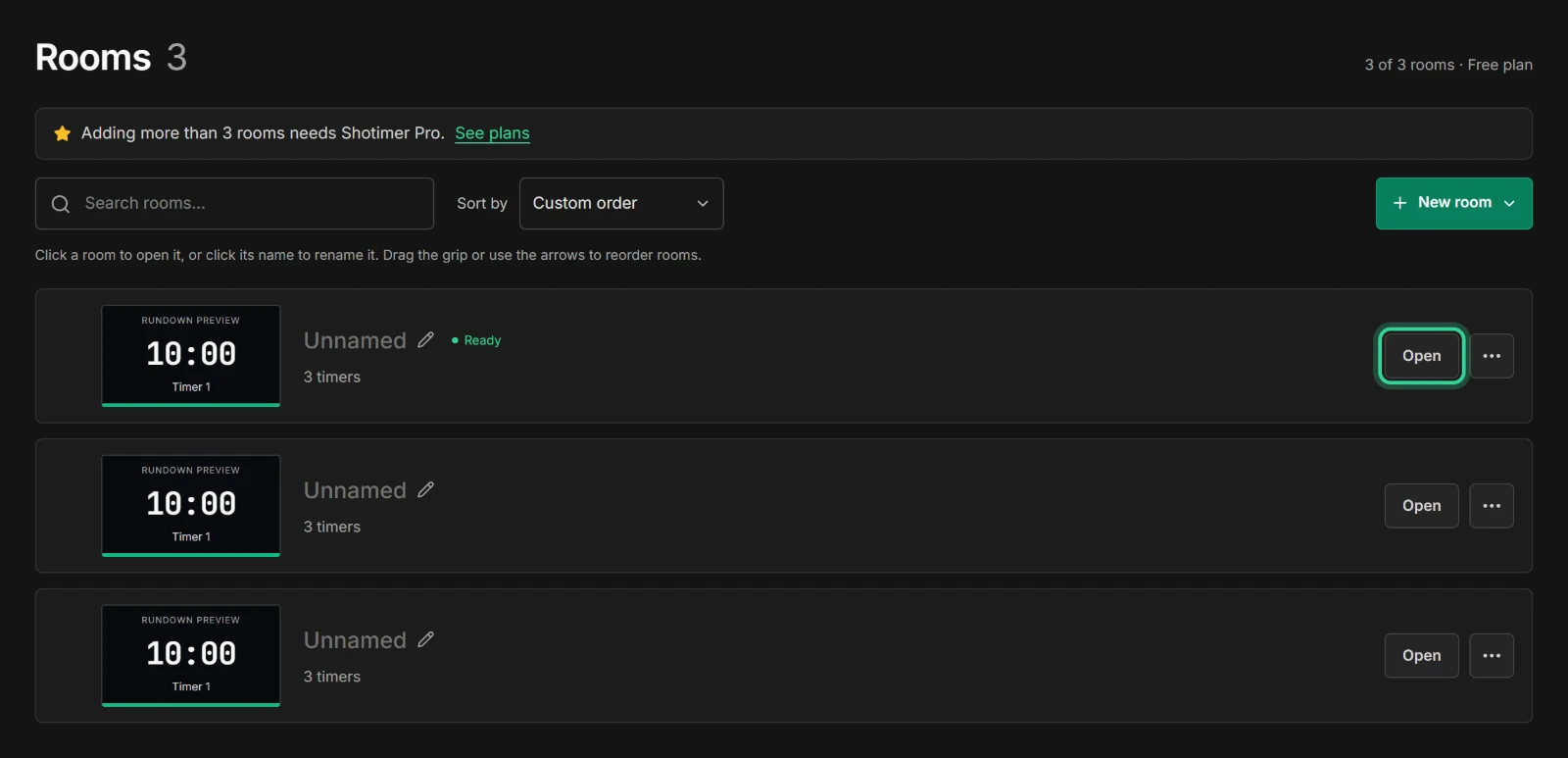
After you create a free account and sign in, you’ll see your rooms. A room is one stage or event space, with its own running order and its own screens. The Free plan includes 3 rooms.
New rooms show as Unnamed. Click the name to give the room one, such as “Main Hall”, then click Open.
2. Find your way around the Controller
The Controller is where you prepare and run the show. It has four parts you’ll use most:
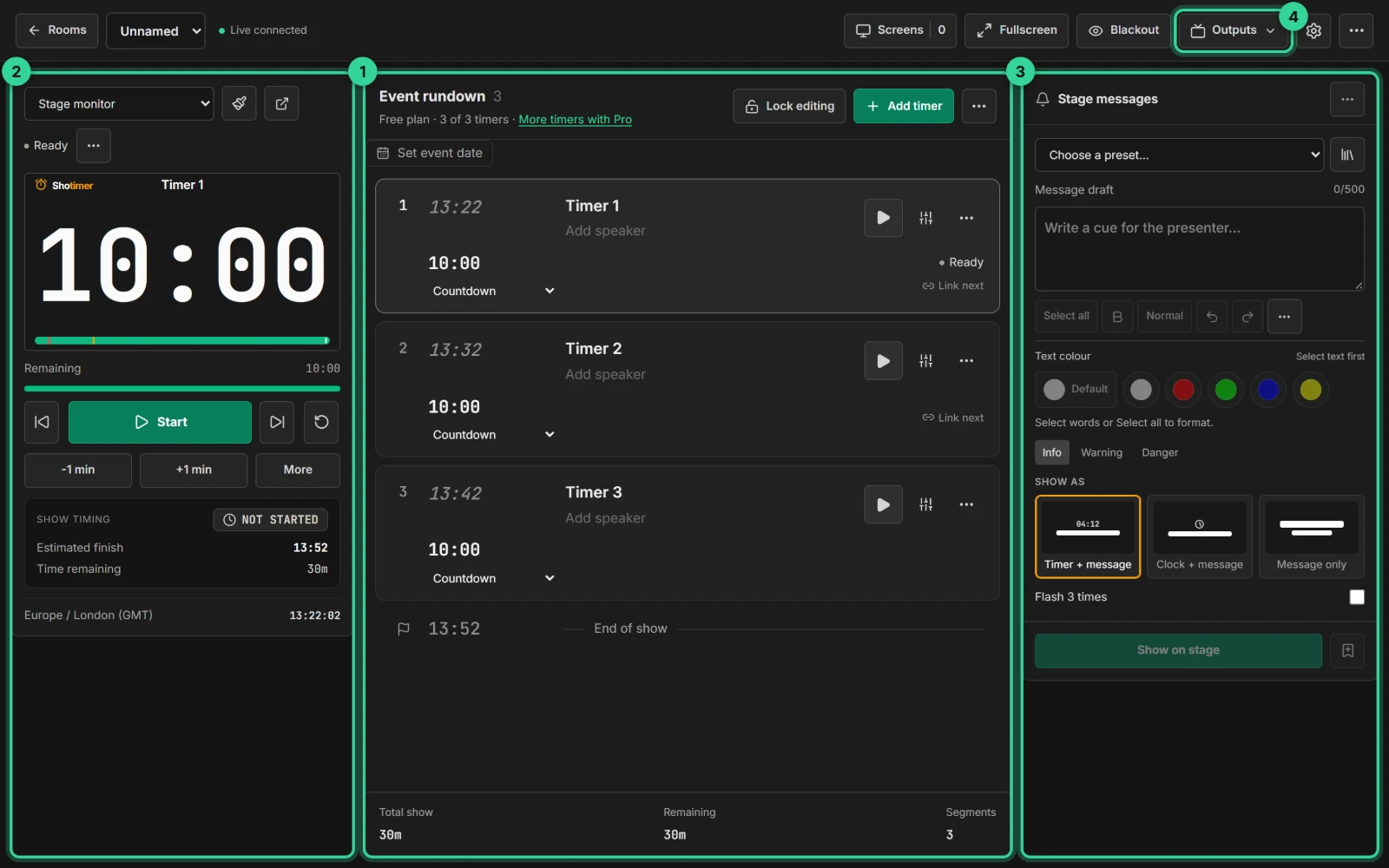
- Rundown. Your running order. Each row is one segment of the show.
- Preview and transport. Shows exactly what the stage screen shows, with Start, Pause, and buttons to add or take off a minute.
- Stage messages. Silent notes for the speaker. See Stage messages.
- Outputs. Puts the timer on a screen.
3. Set up a timer
Click into a row to change it:
- Title, such as “Opening & Welcome”.
- Speaker, just below the title.
- Duration, as minutes and seconds. Type
10:00for ten minutes, or1:30:00for an hour and a half. - Type, just under the duration, such as Countdown or Count up. See Timers for every type.
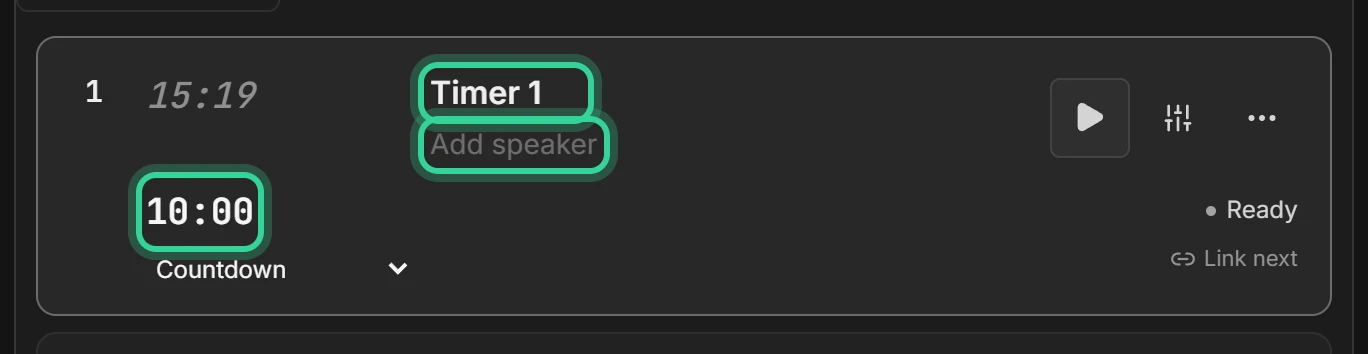
Every room starts with three 10-minute timers, Timer 1, Timer 2 and Timer 3, ready for you to change. The Free plan allows 3 timers per room, so change these rather than adding more, or delete one you don’t need.
4. Put the timer on a screen
Click Outputs at the top right, then Stage monitor. The stage screen opens in a new browser tab. Move that tab to the screen the speaker will see, such as a TV or projector, and press Fullscreen.
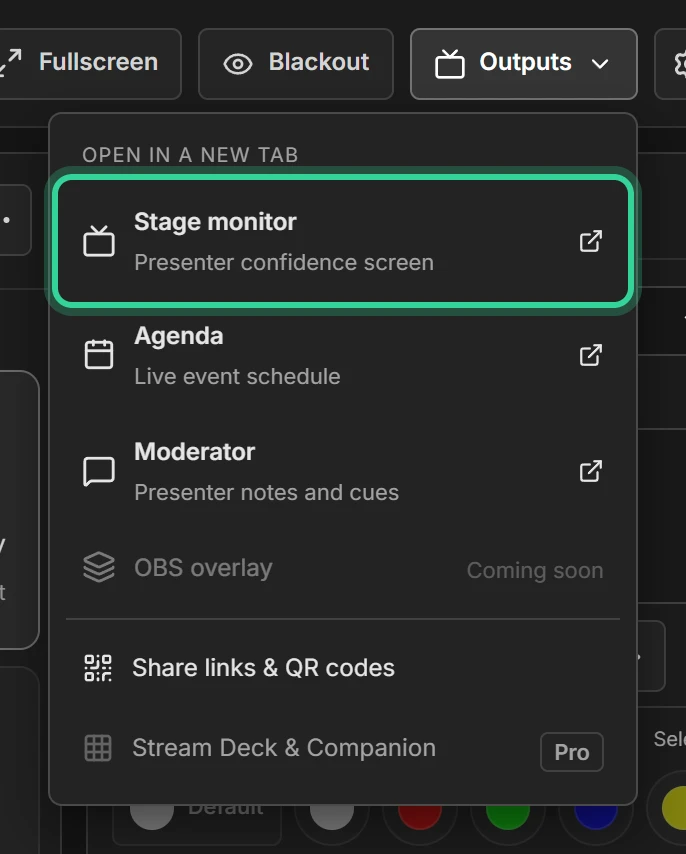
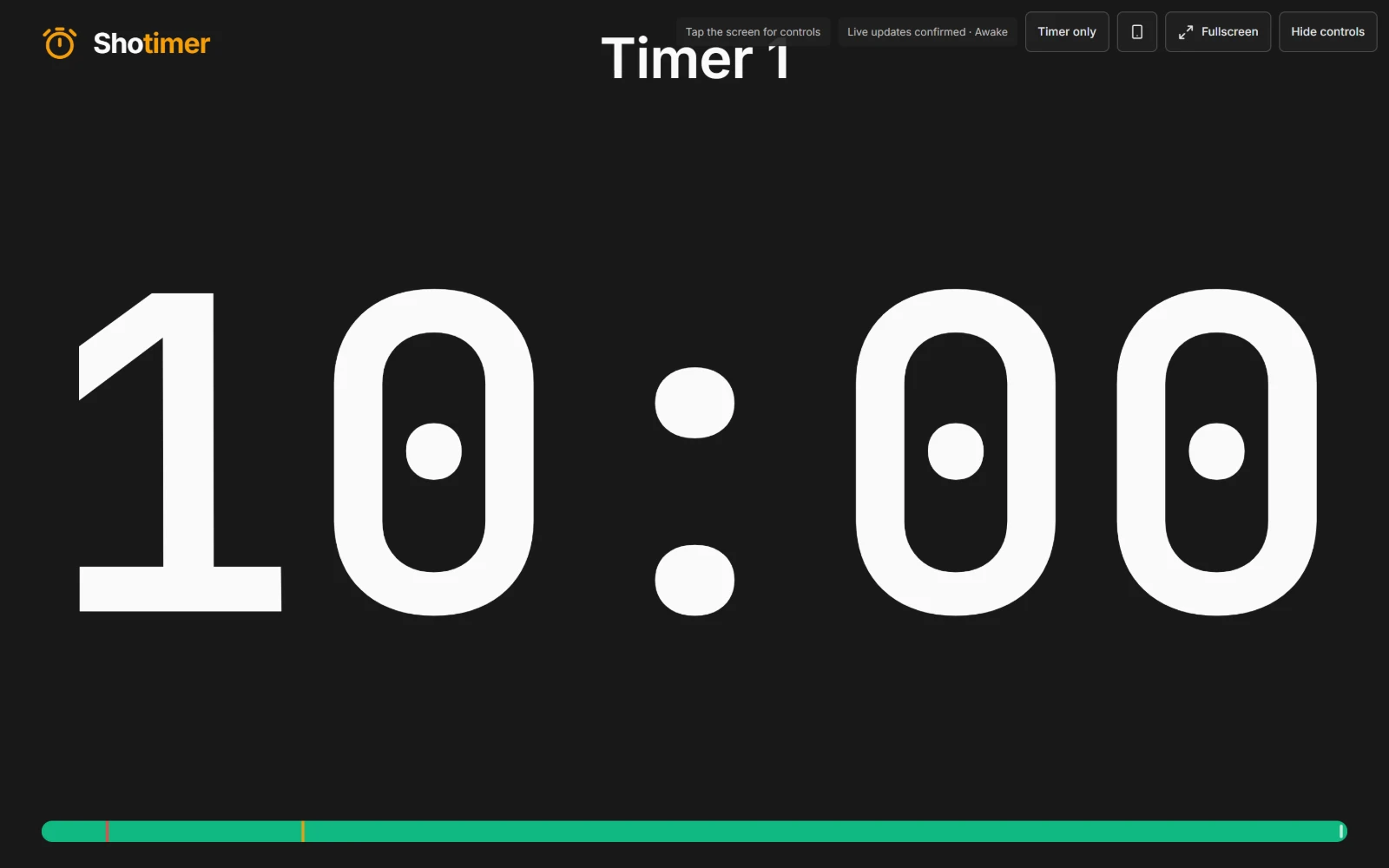
For a phone, tablet or another computer, use a link or QR code instead. See Put the timer on a screen.
5. Start the timer
Press Start. The stage screen counts down straight away. You can also press the Space bar.
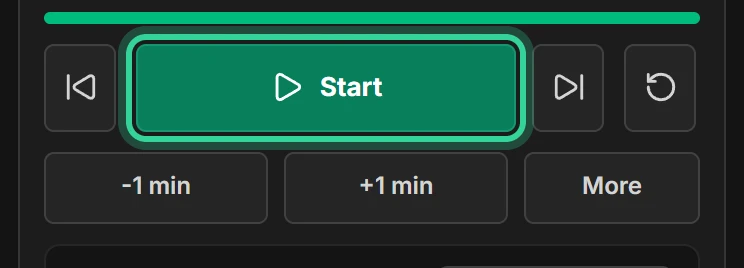
- The timer turns yellow with 2 minutes left and red with 30 seconds left. You can change these times in each timer’s settings.
- Use +1 min or -1 min if a session runs long or short.
- Press Pause to stop the clock, and Resume to carry on.
Next steps
- Put the timer on a screen: phones, tablets and QR codes.
- Stage messages: tell the speaker to wrap up without saying a word.
- The Controller: where everything is.
- If the internet drops: plan for bad Wi-Fi before the day.