Phones and tablets
Use a phone or tablet as a stage screen or a remote, full screen and awake for the whole show.
Phones and tablets make handy stage screens, confidence monitors and remotes. Here’s how to get the best from them.
Use a phone or tablet as a stage screen
- On the Controller, open Outputs, then Share links & QR codes, and choose Stage monitor.
- Scan the QR code with the device’s camera and open the link.
- Turn the device sideways for the biggest numbers.
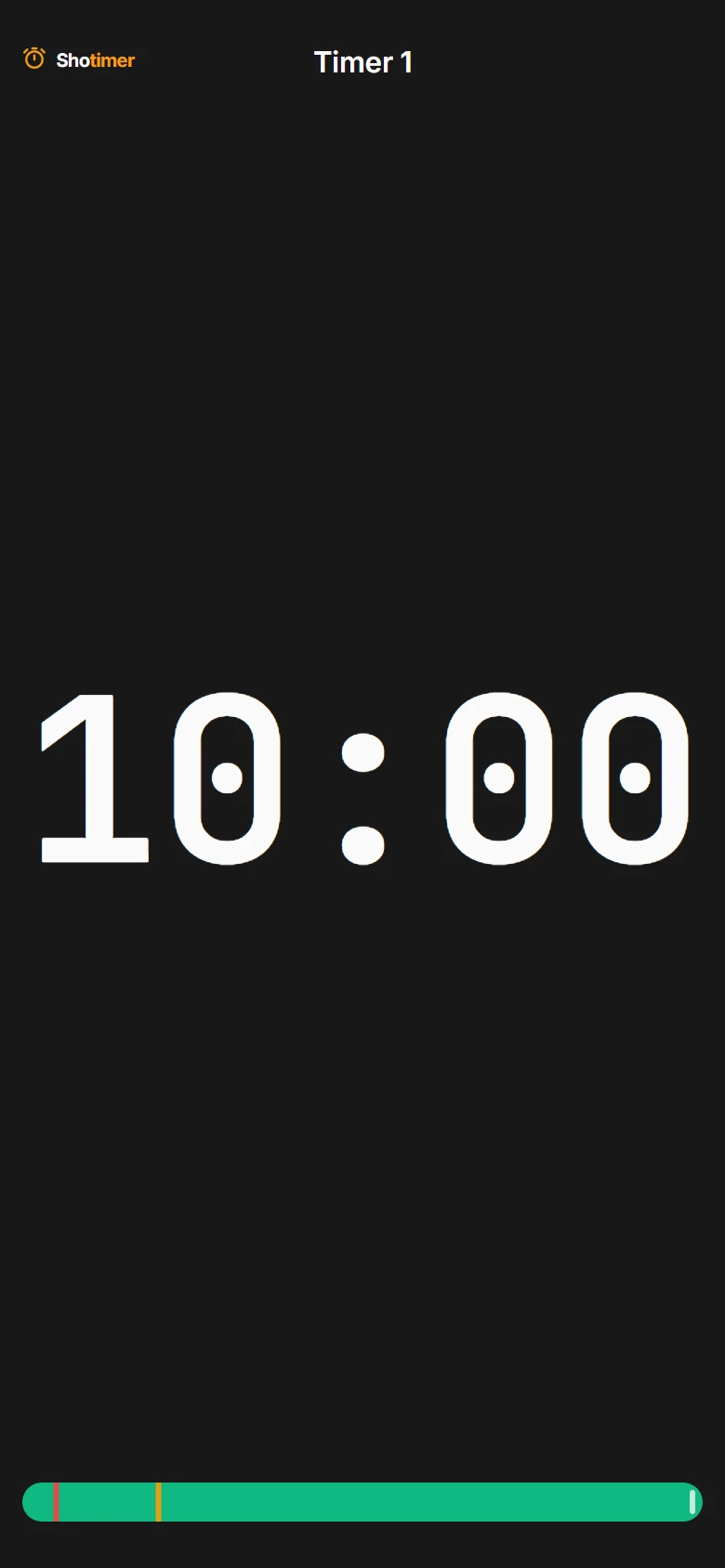
- Tap the screen to show its controls, then Fullscreen.
Full screen on iPhone and iPad
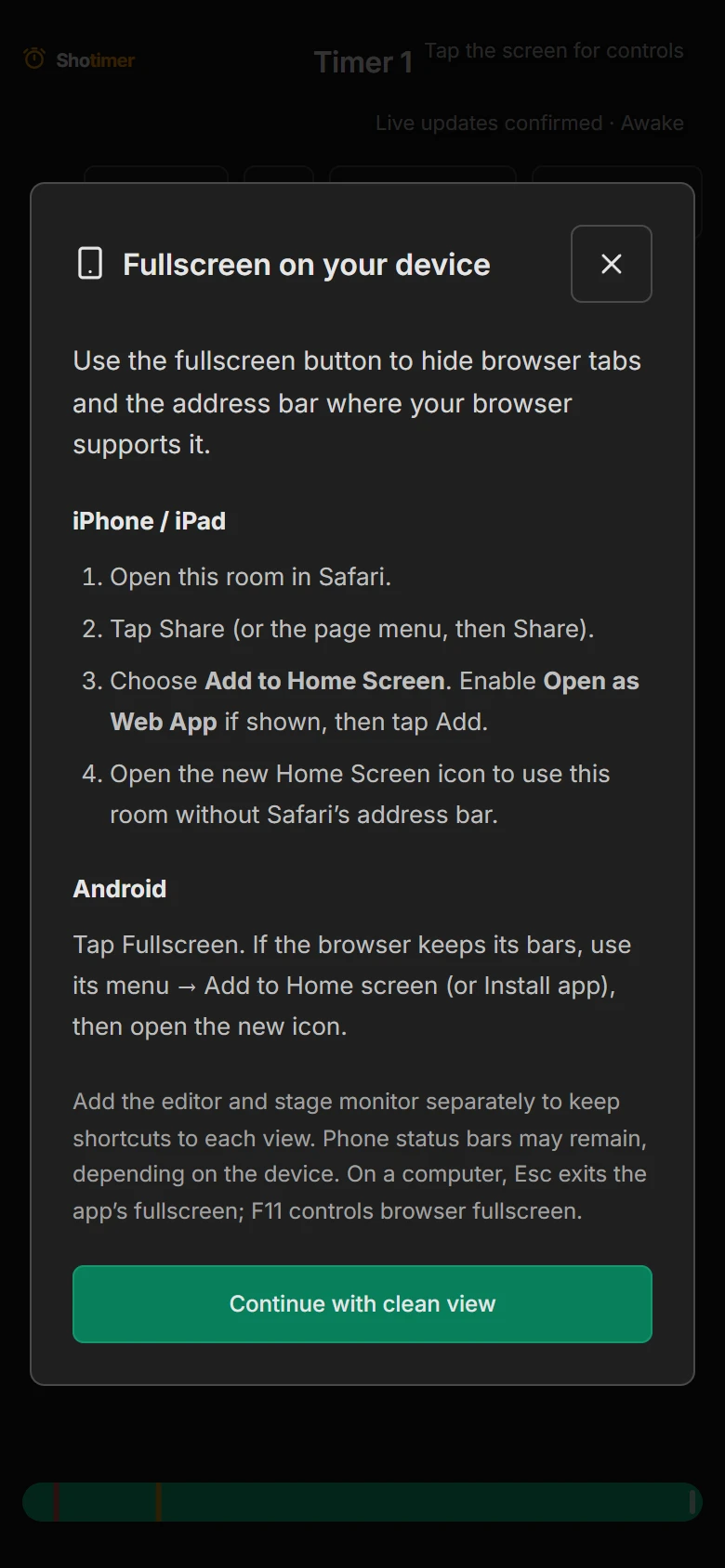
Safari can’t hide its bars from a web page. Add Shotimer to the Home Screen instead:
- Open the stage link in Safari.
- Tap Share, then Add to Home Screen. If you see Open as Web App, switch it on. Tap Add.
- Open Shotimer from the new icon. It fills the screen, without Safari’s address bar.
On Android, tap Fullscreen. If the browser keeps its bars, open its menu and choose Add to Home screen or Install app, then open the new icon.
The stage screen’s phone button shows these steps on the device itself.
Keep it on for the whole show
- Shotimer asks the device to keep its screen on. If “Awake” doesn’t appear in the stage screen’s controls, turn off auto-lock in the device’s settings.
- Plug it in. A screen at full brightness for a long session uses a lot of battery.
- Low power or battery saver modes can dim the screen, so switch them off for the show.
- Turn on Do Not Disturb, so notifications don’t pop up on stage.
Just the numbers
On a small screen, tap the screen and choose Timer only to hide the title and speaker and make the countdown as large as possible. It only changes that device.
Use a phone or tablet to run the show
- Sign in to your account on the device and open the room. On a tablet, the Controller fits on screen, with Stage messages in a panel you open from the top. On a phone, it becomes one scrolling page.
- Or send someone the Controller link from Share links & QR codes, so they can run the show without your account.
- Only one device controls the room at a time. See Using two devices.
- For a stage manager who only sends messages, use the Moderator link.