Agenda and Moderator views
A read-only running order for the crew or audience, and a view for a host who sends messages to the speaker.
As well as the stage monitor, every room has two more views. The Agenda is a read-only running order for the crew or the audience. The Moderator view is for a host or stage manager who sends messages to the speaker but doesn’t run the timer.
The Agenda
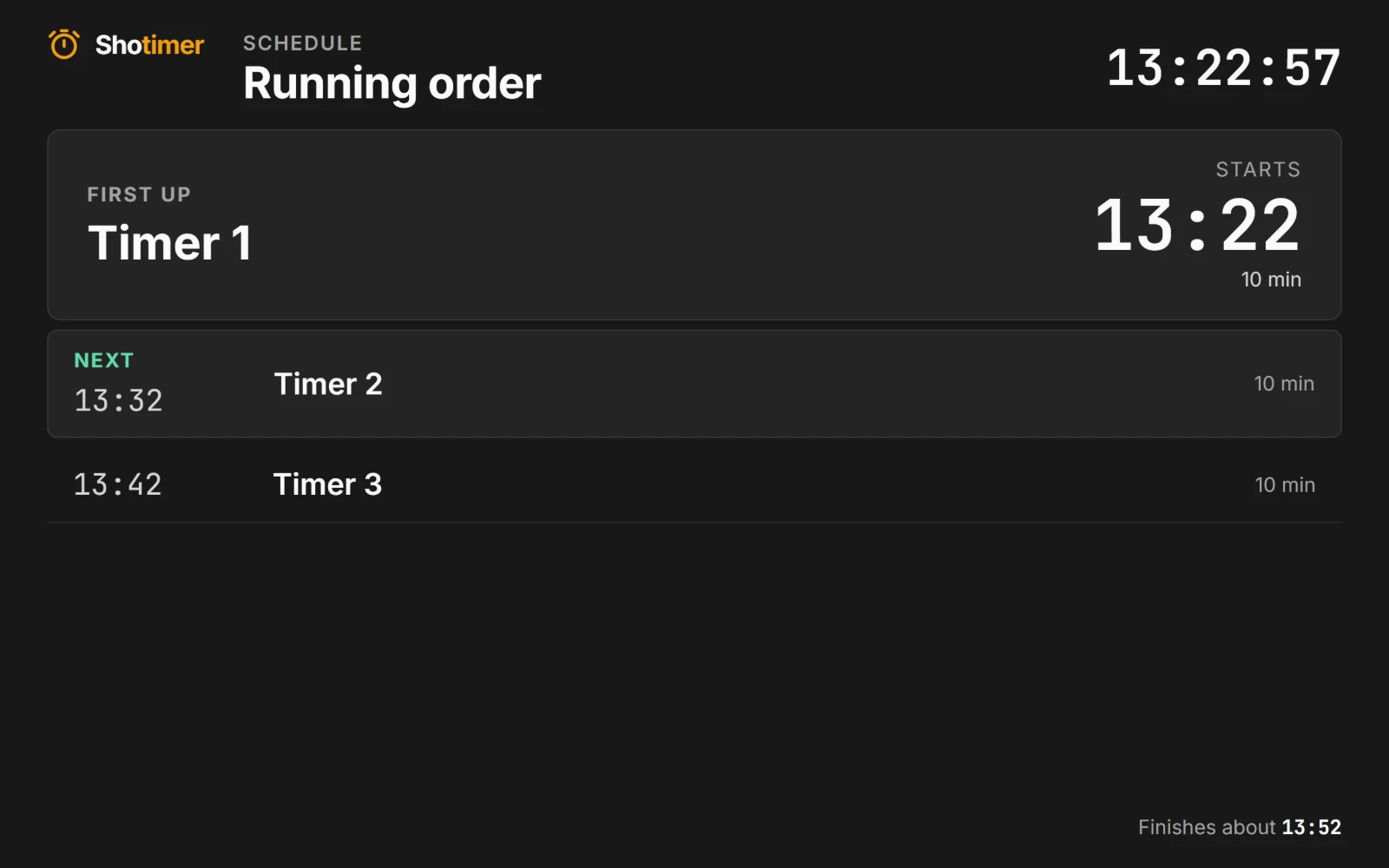
The Agenda fills the screen, so it can be read from across a room. It shows:
- the room’s name and the time of day, at the top;
- Now: the current session, its speaker and the time left, in a large card;
- Next, then every later session, each with its start time, speaker and length;
- earlier sessions, faded, above the current one;
- when the show is expected to finish, at the bottom.
A session whose title is hidden from the screens shows as To be announced, and a hidden speaker isn’t shown. With Shotimer Pro (coming soon), the Agenda can also show each session’s labels, as small tags after its title: switch on Labels when customising the Agenda.
Before the show starts, the card says First up, with its start time. Start times are the ones you set, or estimated from the sessions before. Everything updates by itself as the show runs and as you change the rundown, and a long schedule scrolls by itself to keep the current session near the top.
The Agenda never shows speaker notes or stage messages, so it’s safe to put on a screen the audience can see, such as in the lobby or on a projector between sessions. It works on TVs, upright screens, tablets and phones.
Move the mouse or tap the screen to show Fullscreen and Hide controls. They fade away again after a few seconds. If the screen loses its connection, a small note appears at the bottom, as on the stage screen.
See how far through a session is (Pro)
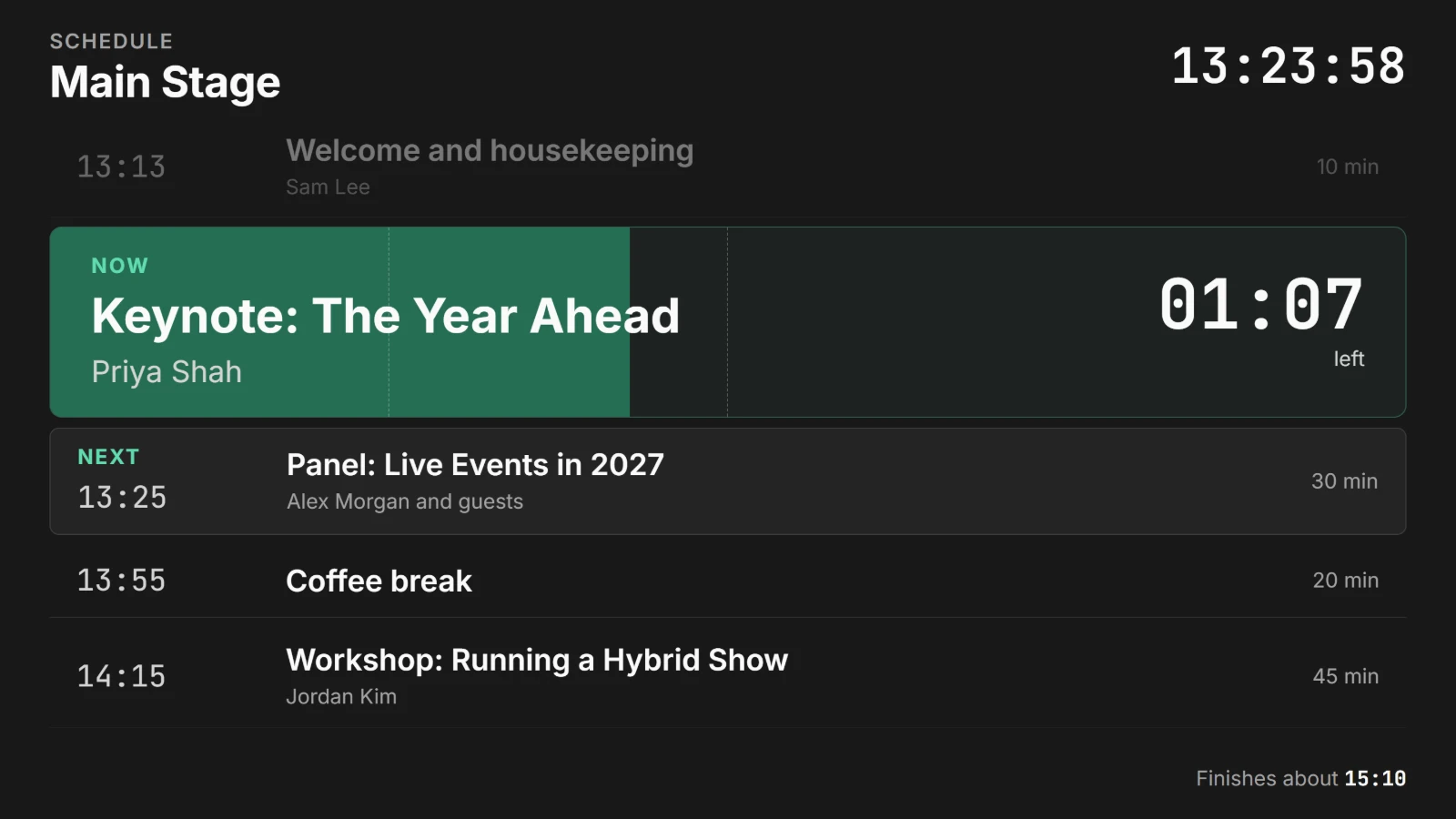
With Shotimer Pro, which is coming soon, the Now card fills up from left to right as the session runs, from a light tint to a rich shade, with faint marks at each quarter. Anyone walking past can see “about halfway” or “nearly finished” without reading the time. It’s a calm, steady flow: it never flashes or changes to yellow or red, because the Agenda is for attendees. Warnings for the speaker are on the stage monitor.
You can choose the fill’s colour, the Accent colour, to suit your background or brand. See Customise your screens.
On the Free plan, a thin green progress bar runs along the bottom of the Now card instead.
The Moderator view
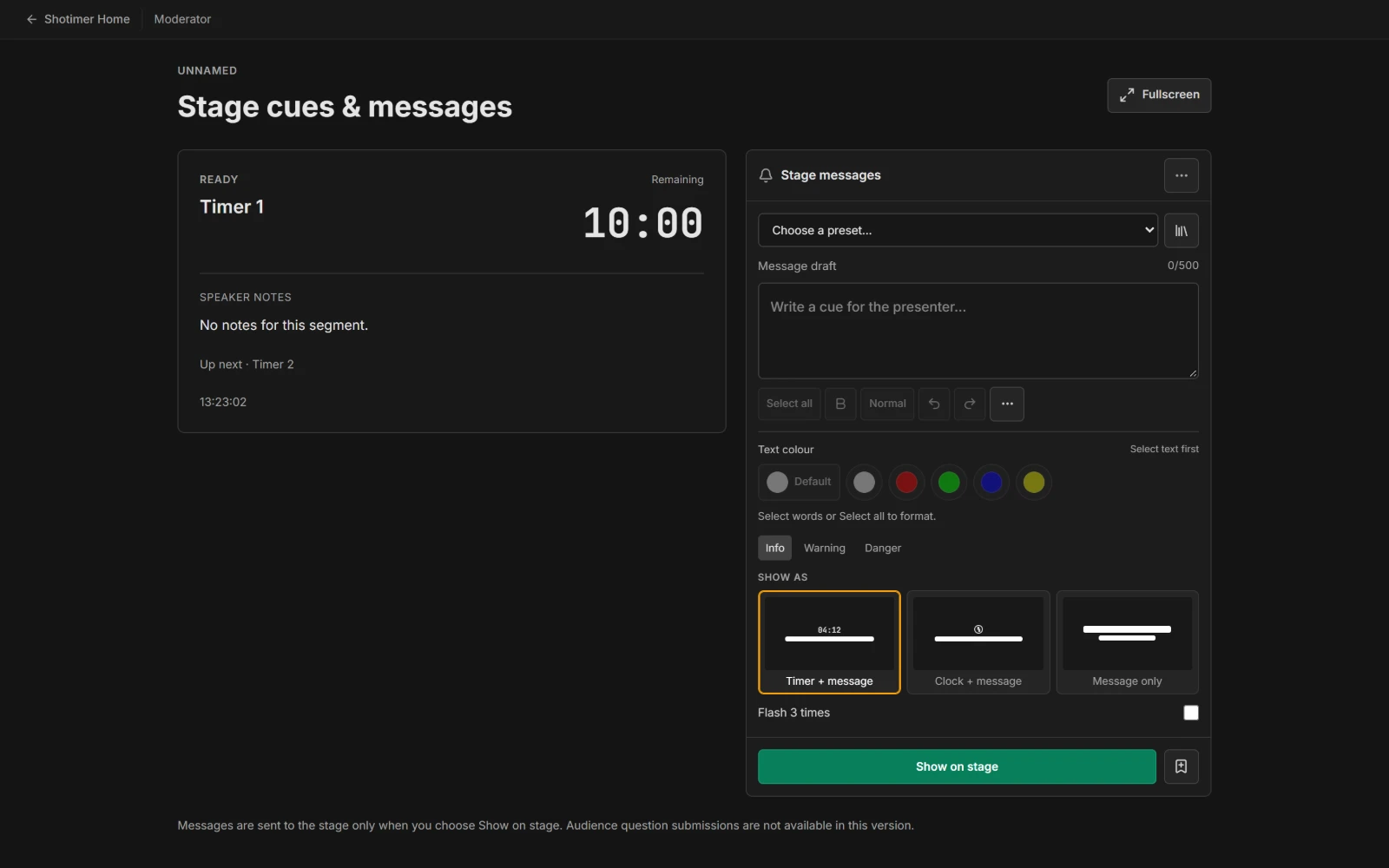
The Moderator view shows the current timer, its time left, its speaker notes, what’s up next and the time of day. Next to it is the same Stage messages panel as on the Controller, so the moderator can tell the speaker to wrap up without anyone else doing it for them. See Stage messages.
Someone using a Moderator link can send and clear stage messages, but can’t start, pause or change timers.
Open them, or share them
- On this computer: press Outputs at the top of the Controller, then Agenda or Moderator. It opens in a new tab.
- On someone else’s phone, tablet or laptop: press Outputs, then Share links & QR codes. Choose Agenda or Moderator in the list, then let them scan the QR code or send them the link.
A link can only do what its kind allows. An Agenda link can’t be used to send messages or control the show. See Put the timer on a screen.
Each device that opens one of these links counts towards the room’s connected screens. The Free plan allows 3 per room. See Free and Pro.
Change what they show
Press the paintbrush above the preview on the Controller, then choose the Agenda or Moderator tab. For the Agenda you can show or hide the Estimated finish, the Time of day and Earlier sessions. Behind or ahead adds how late or early the show is running; it’s off at first, because the audience may see the Agenda. With Pro you can also choose the Accent colour and turn the Progress fill on or off. For the Moderator view you can hide the time, speaker notes, Up next and the time of day. See Customise your screens.
To see either view without opening it, choose it in the list above the Controller’s preview.