A free run of show template, and how to write one
A run of show is the minute-by-minute plan for an event: what happens, when, for how long and who is responsible. Download the free template, fill in your event, and share it with everyone involved.
Free plan: 3 rooms, 3 timers and 3 screens per room. No card needed.
What goes in a run of show
One row for every moment of the event, in order, including the gaps between the main items. The template has these columns, with example rows from a conference morning:
- Start, end and length: the planned time of each item. Fixed times, such as the start of a live stream or the end of a break, are worth marking.
- Item and presenter: what's happening and who's leading it.
- Location, audio, slides and lighting: what each part of the team needs to have ready.
- Notes and cues, and owner: anything to remember, and the one person responsible.
How to write one that holds up on the day
- Include the changeovers. Moving chairs, swapping microphones and loading slides all take time. Give them their own rows.
- Leave buffers before fixed times. A few spare minutes before a break, a meal or the end of the venue booking stop one late session spoiling the rest of the day.
- One owner per row. If everyone is responsible for something, nobody is.
- Number your versions. Put a version number and date at the top, and send the new one whenever times change.
- Walk through it with the team the day before, top to bottom, out loud. Most problems show up there.
Run it live with Shotimer
A run of show is the plan. On the day, Shotimer keeps you to it: type each row in as a timer with its title, presenter and length, or import this template with Shotimer Pro, which is coming soon. The Controller becomes your live running order.
- Each speaker sees their own countdown on a stage screen, with yellow and red warnings as time runs out.
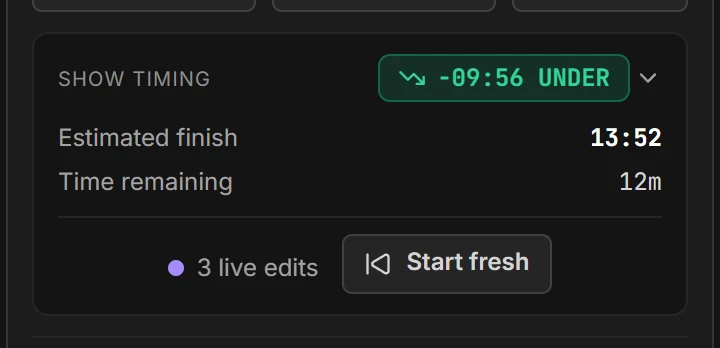
- See if you're running over or under, and when the event will really finish.
- Fixed start times can start a timer by themselves, and linked timers start the next one as soon as one ends.
- An Agenda screen shows attendees what's on now, what's next and when, without the backstage notes.
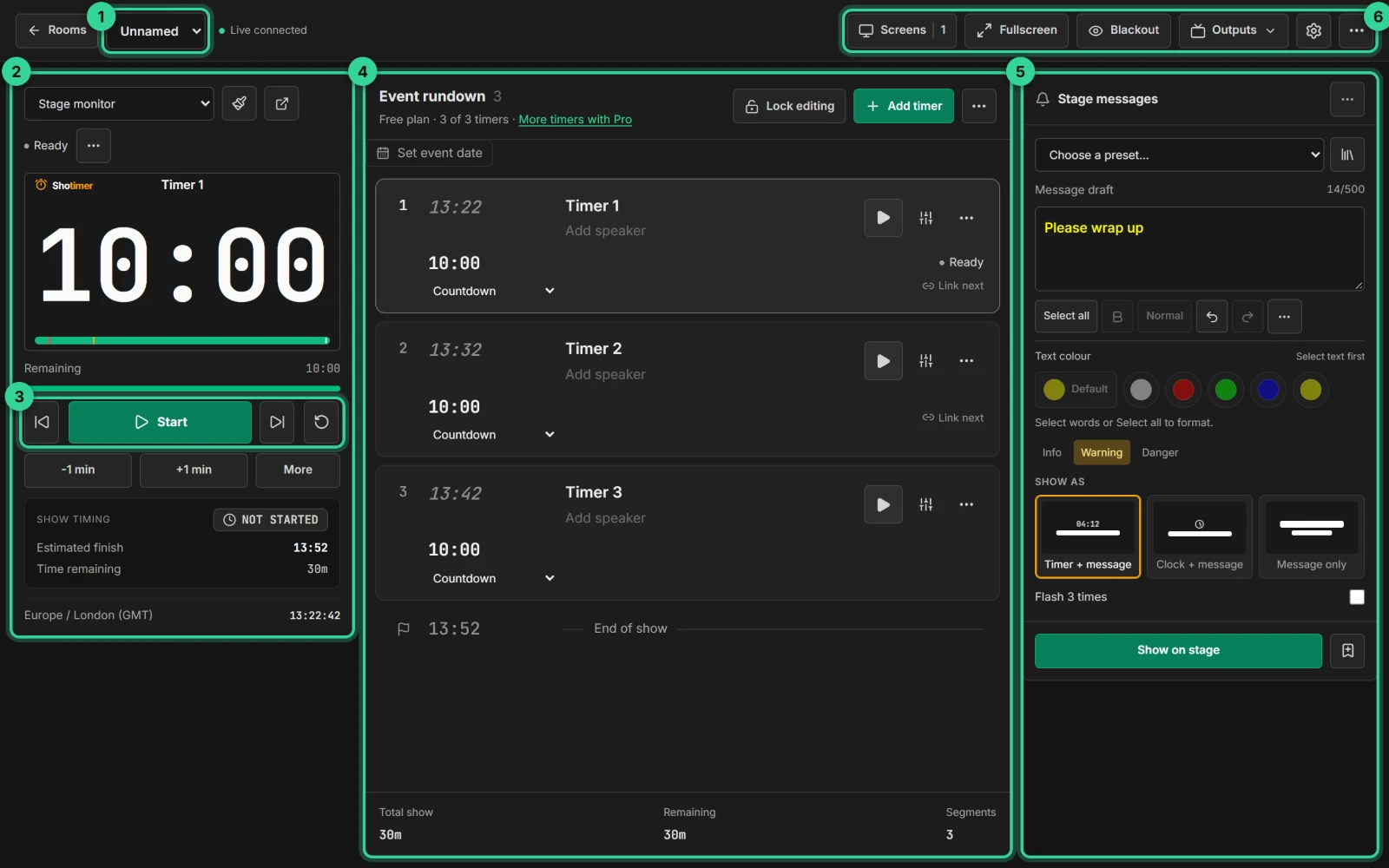
Ready in three steps.
Set up your running order
Create a free account, open a room and give each timer a title, a speaker and a duration.
Put the timer on a screen
Open the stage screen in a new tab, or scan its QR code on a TV, tablet or phone. Nothing to install.
Press Start
Every screen counts down together. Add a minute, send a message or move to the next timer from your laptop or phone.
Frequently asked questions.
Learn more in the docs
More guides
Try Shotimer at your next event.
Create a free account and put a timer on your own screens in a few minutes.
Create a free account