A free fullscreen countdown timer you control from your phone
Put a countdown that fills the whole screen on a TV, projector, tablet or phone, and start, pause or add time from a different device. It runs in the browser, so there's nothing to install.
Free plan: 3 rooms, 3 timers and 3 screens per room. No card needed.
A countdown you can read from the back of the room
The stage screen fills whatever it's on with large, evenly spaced digits, so the numbers never jump about as they count down.
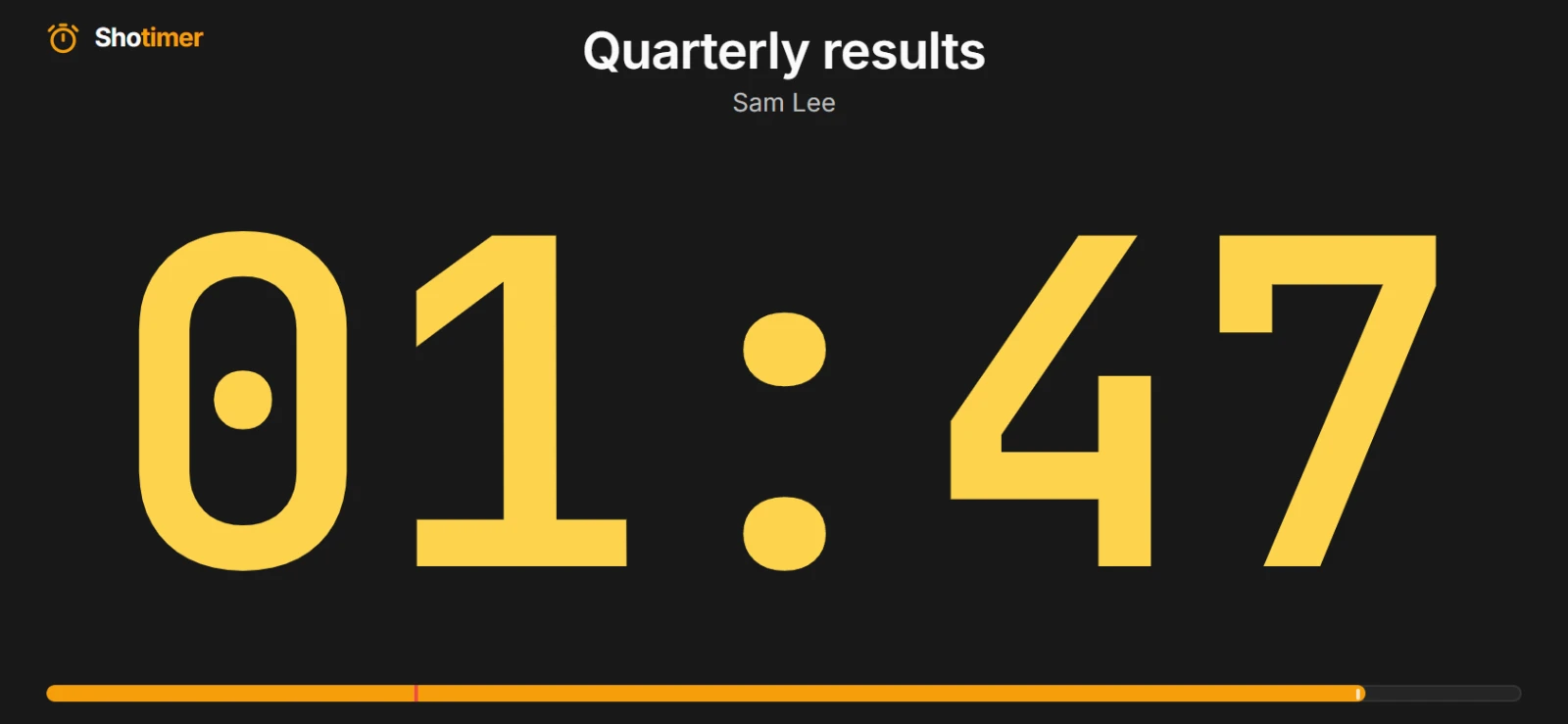
- Yellow, then red: the digits change colour as time runs out, by default with 2 minutes and 30 seconds left. Change both, or switch them off, per timer.
- A title and a name: show what's on and who's speaking above the countdown, or hide them for just the numbers.
- Into overtime, or stop at zero: choose whether the timer counts on past zero or holds at 00:00.
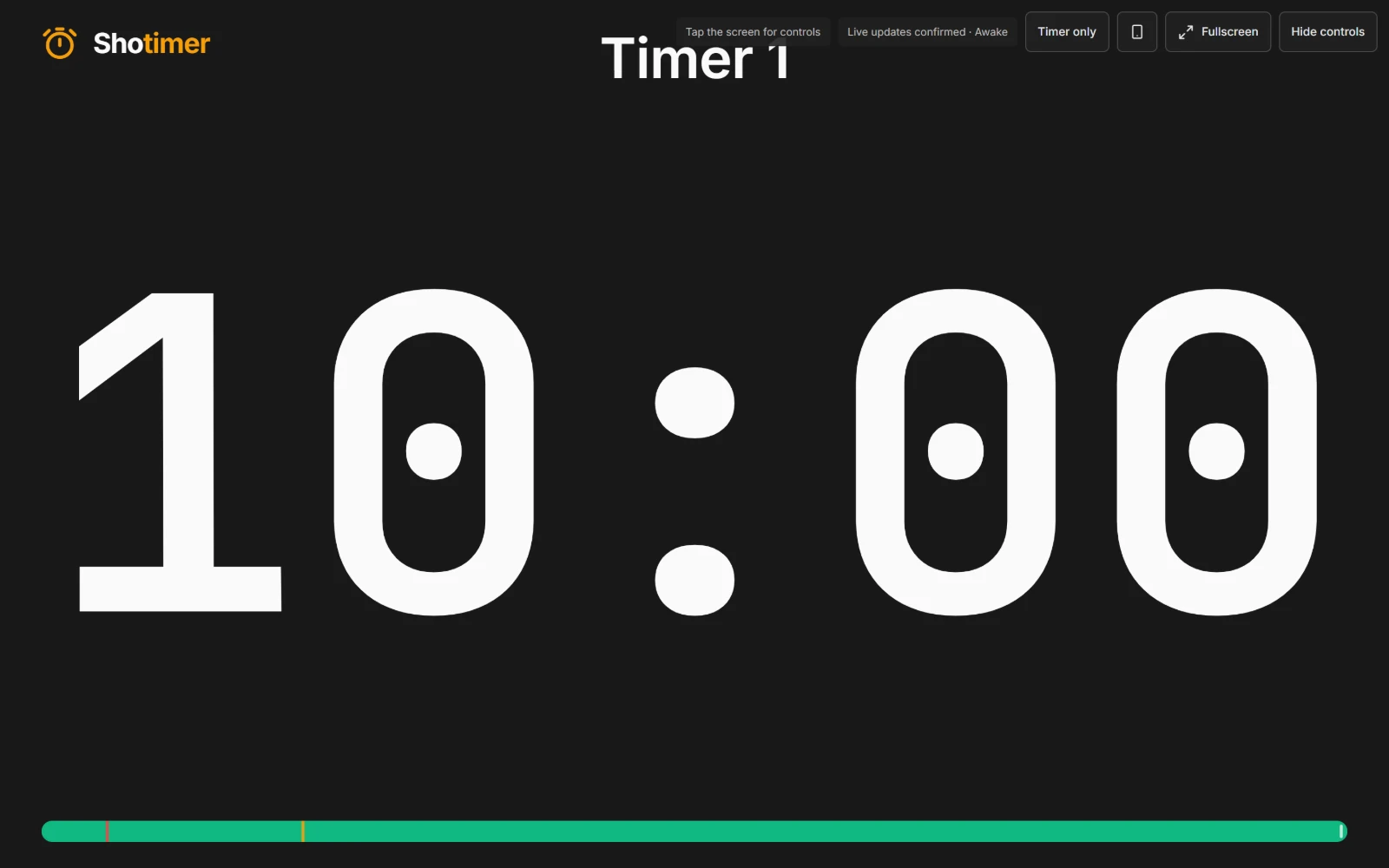
Make it fill the screen
Open the stage screen on the device you want to use, then make it full screen.
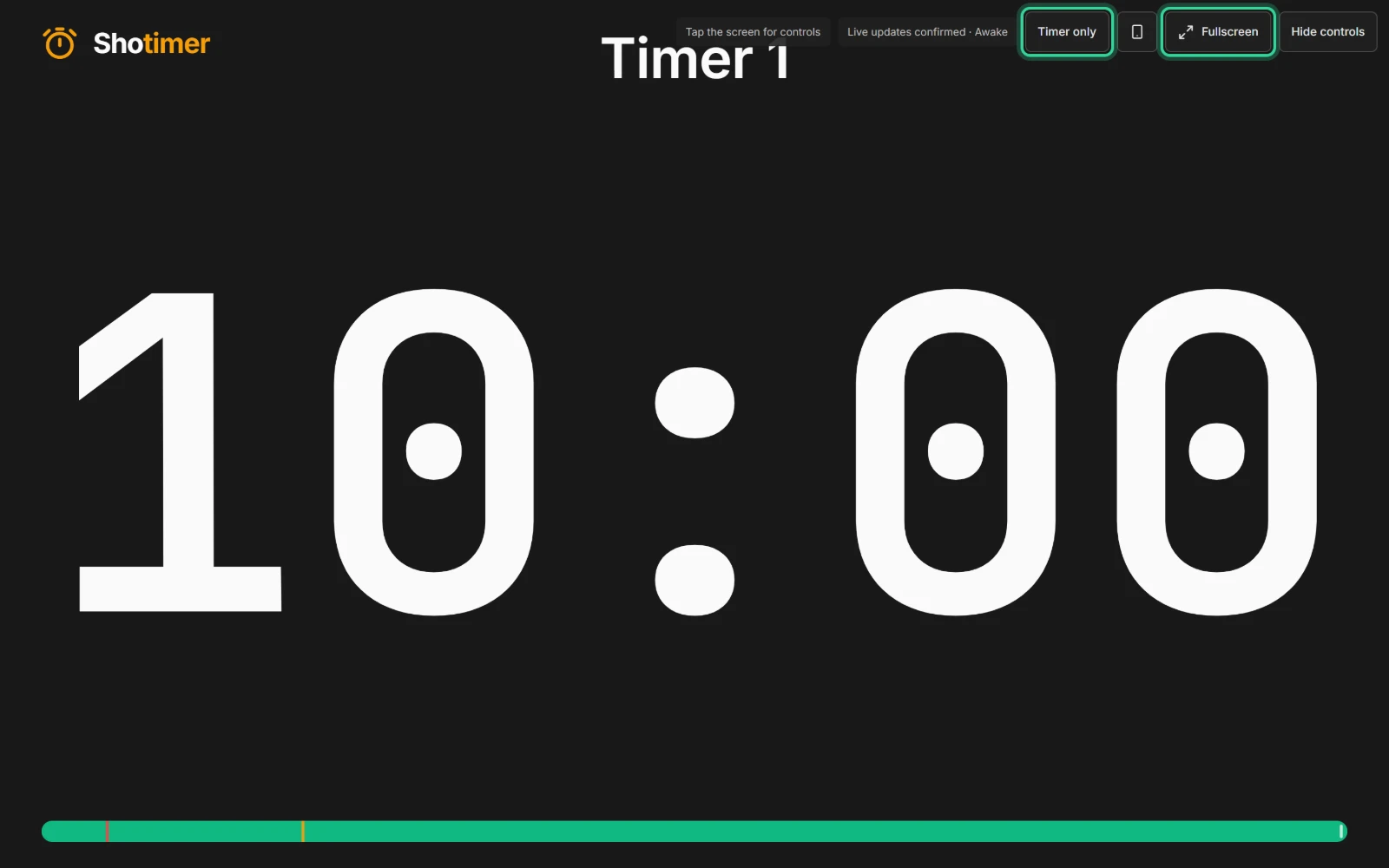
- Computers and TVs: press Fullscreen on the stage screen, or F11 on Windows (Control-Command-F on a Mac).
- Tablets and Android phones: tap the screen to show the controls, then Fullscreen.
- iPhone: add the page to the Home Screen and open it from there. The phone button on the stage screen explains how.
- Timer only: hide the title and speaker for the biggest possible digits on a small screen.
Control it from somewhere else
The screen only shows the countdown. You run it from the Controller on a laptop, tablet or phone, anywhere with an internet connection.
- Start, pause and skip from your phone at the back of the room.
- Add or take off time in steps of a minute, or 10 seconds, 30 seconds and 5 minutes.
- Send a silent message such as “5 MIN LEFT” to the screen, without saying a word.
- Several screens at once: open the same stage screen on more than one device, and they all count down together.
Ready in three steps.
Set up your running order
Create a free account, open a room and give each timer a title, a speaker and a duration.
Put the timer on a screen
Open the stage screen in a new tab, or scan its QR code on a TV, tablet or phone. Nothing to install.
Press Start
Every screen counts down together. Add a minute, send a message or move to the next timer from your laptop or phone.
Frequently asked questions.
Learn more in the docs
More guides
Try Shotimer at your next event.
Create a free account and put a timer on your own screens in a few minutes.
Create a free account