How to time a PowerPoint presentation
The easiest way to time a talk is to keep the slides on the big screen and put the countdown on a separate screen only the speaker can see. Here's how to set that up with Shotimer, and what it can't do.
Free plan: 3 rooms, 3 timers and 3 screens per room. No card needed.
First, what Shotimer does and doesn't do
Shotimer doesn't plug into PowerPoint, and it can't put a countdown inside your slides. It shows the countdown on a separate screen that the speaker can see, while the slides stay on the big screen as normal. For most talks that's the better setup anyway: the audience sees your slides, and only you see the clock.
- Works with any slides: PowerPoint, Keynote, Google Slides or a PDF, because Shotimer runs separately in a web browser.
- Nothing to install on the presentation computer.
Choose where the speaker sees the countdown
- A tablet or phone on the lectern: the simplest setup. Scan the stage screen's QR code with it, and turn it sideways for bigger digits.
- A confidence monitor on the floor at the front of the stage: open the stage screen on the computer or TV connected to it.
- A second monitor on the speaker's desk, for online talks or meetings.
PowerPoint's Presenter View has its own clock, but it counts up from when you started. A countdown to the end of your slot, which turns yellow and then red, is much easier to glance at mid-sentence.
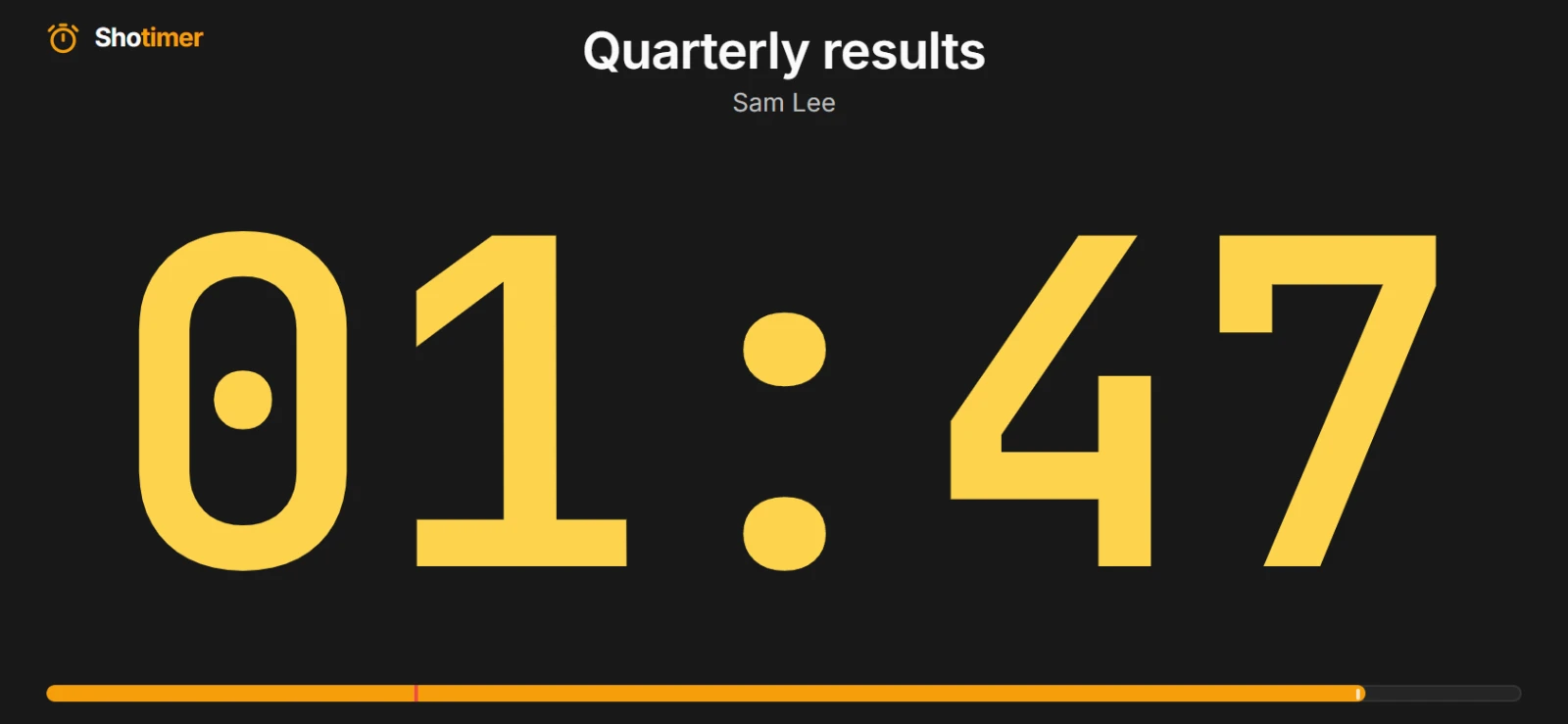
Set it up in a few minutes
- 1. Add a timer for the talk, and one for questions if there are any. Link them so questions start as the talk ends.
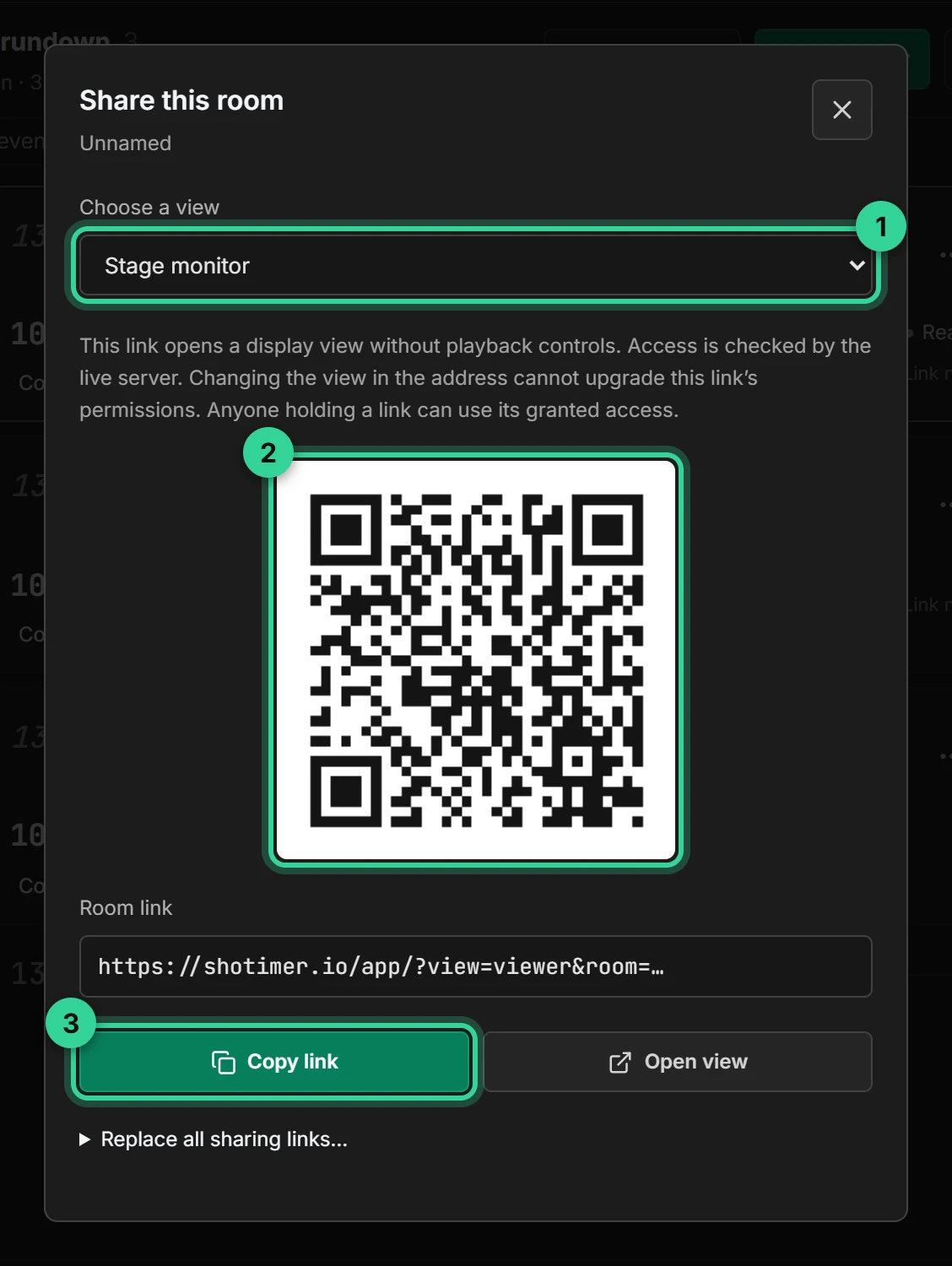
- 2. Open the stage screen on the speaker's device, from Outputs, or by scanning its QR code.
- 3. Start the slides on the projector as usual.
- 4. Press Start on the Controller as the speaker begins. A colleague at the back can do this, add a minute, or send “Wrap up” silently to the speaker's screen.
Want the audience to see a countdown before you begin? Show the stage screen on the projector as a “starting soon” countdown, then switch to your slides when it's time to start.
Ready in three steps.
Set up your running order
Create a free account, open a room and give each timer a title, a speaker and a duration.
Put the timer on a screen
Open the stage screen in a new tab, or scan its QR code on a TV, tablet or phone. Nothing to install.
Press Start
Every screen counts down together. Add a minute, send a message or move to the next timer from your laptop or phone.
Frequently asked questions.
Learn more in the docs
More guides
Try Shotimer at your next talk.
Create a free account and put a timer on your own screens in a few minutes.
Create a free account